In this video, we are going to do a quick run through of the Public View
1. Preview Public View
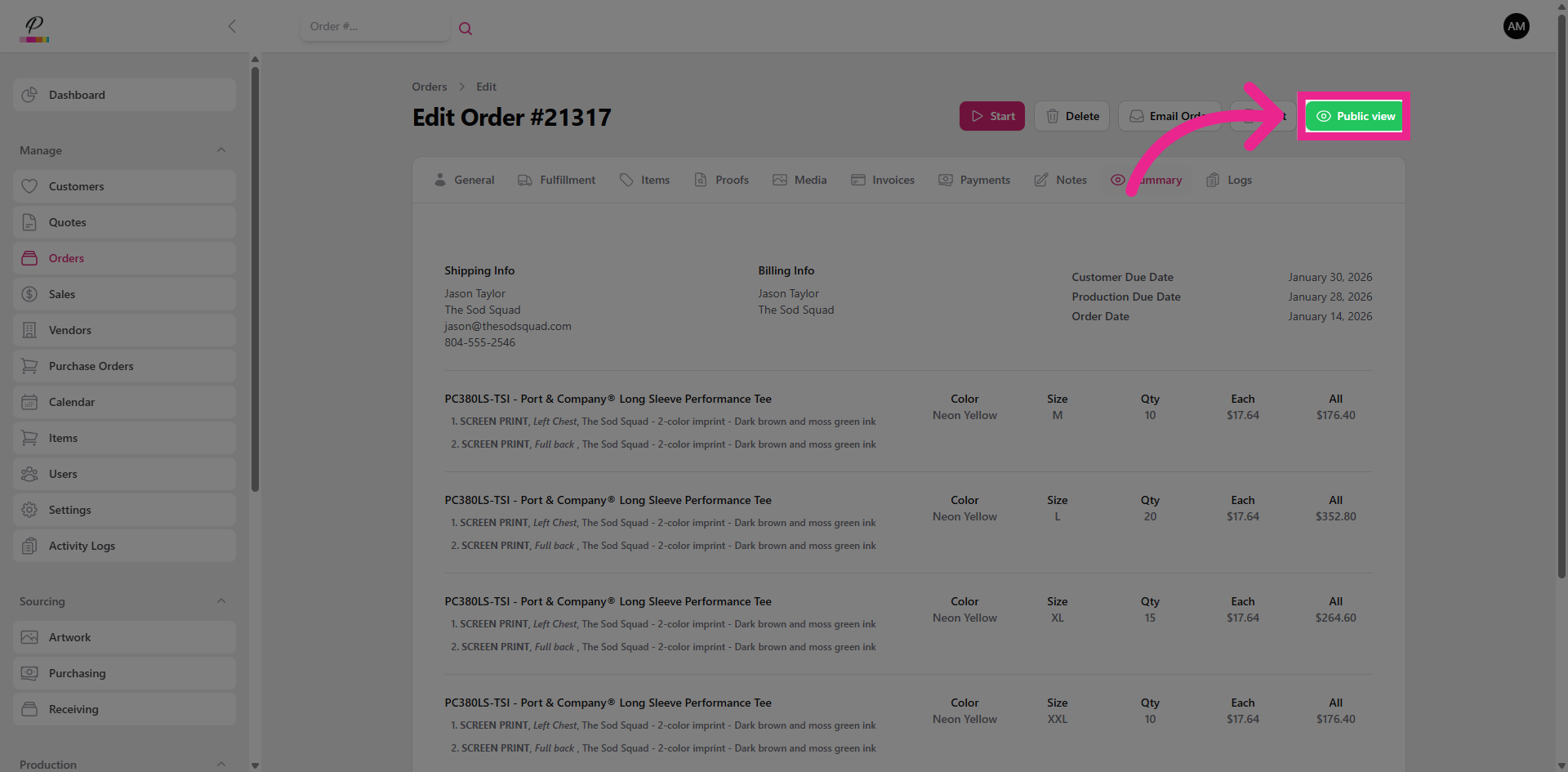
You can access the public view within any order by clicking the green button
2. Email Order to Customer
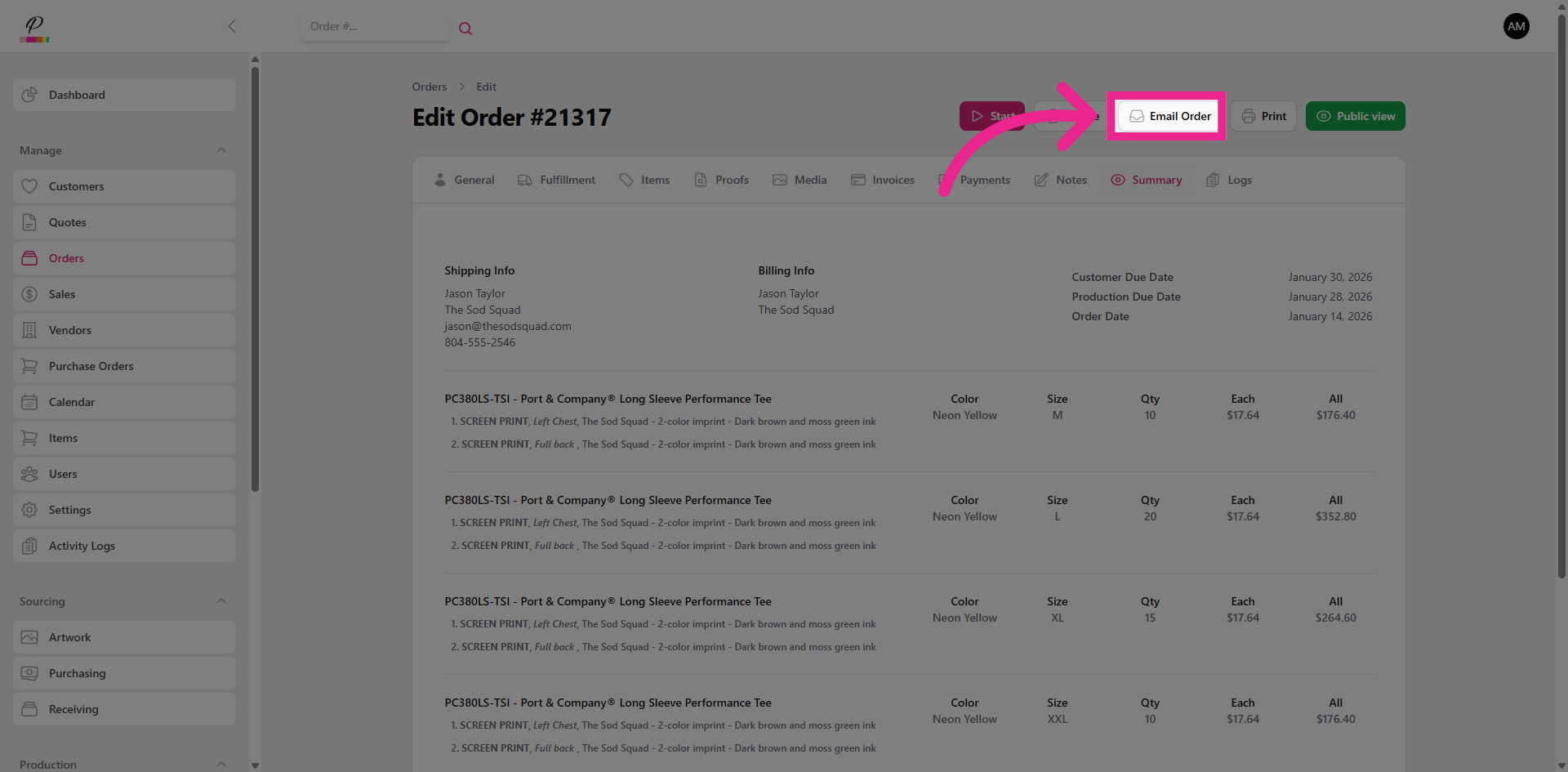
And when you send the order to the customer via email, they will also receive an access link to the public view page.
3. View Summary
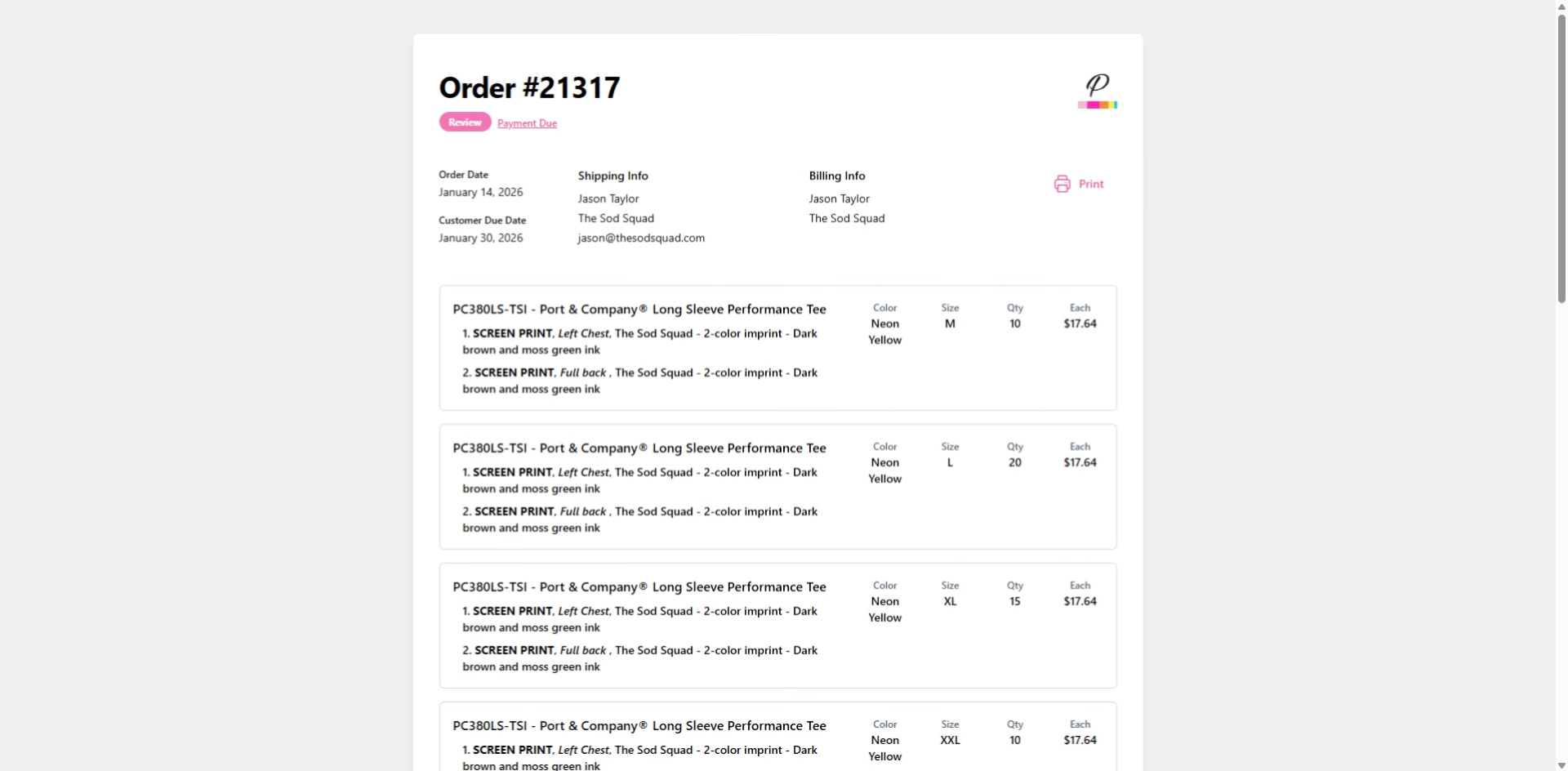
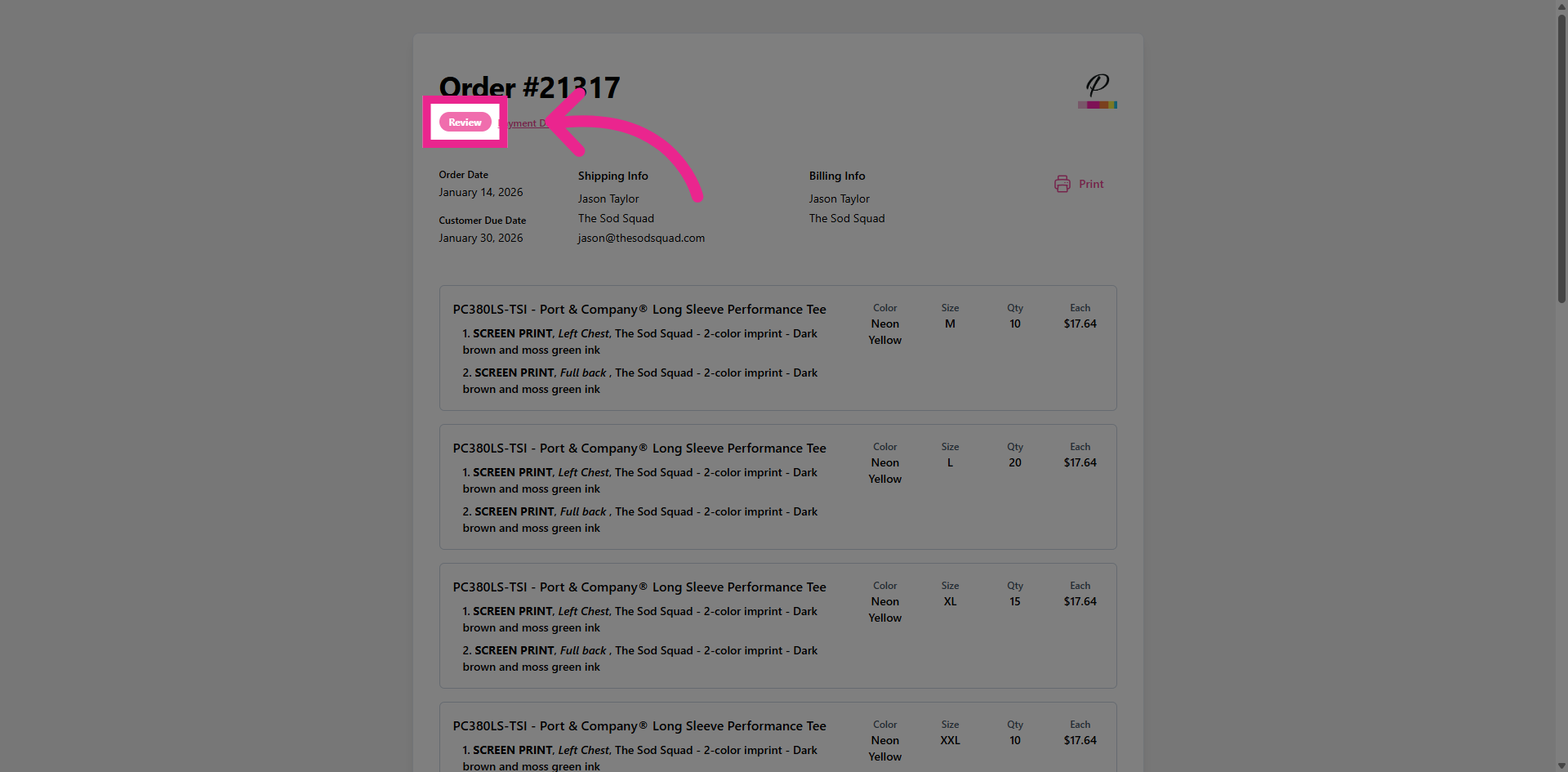
This is a clean, easy to read summary of the order which includes a live status indicator in the top left corner.
4. Status Indicator
The customer can easily see where there order is in the process. From review to sourcing, produc- tion to packaging, and once the order is complete, they will be notified for pickup, or updated with delivery or shipping status. If the order is shipping, a tracking link will be attached once the label has been generated.
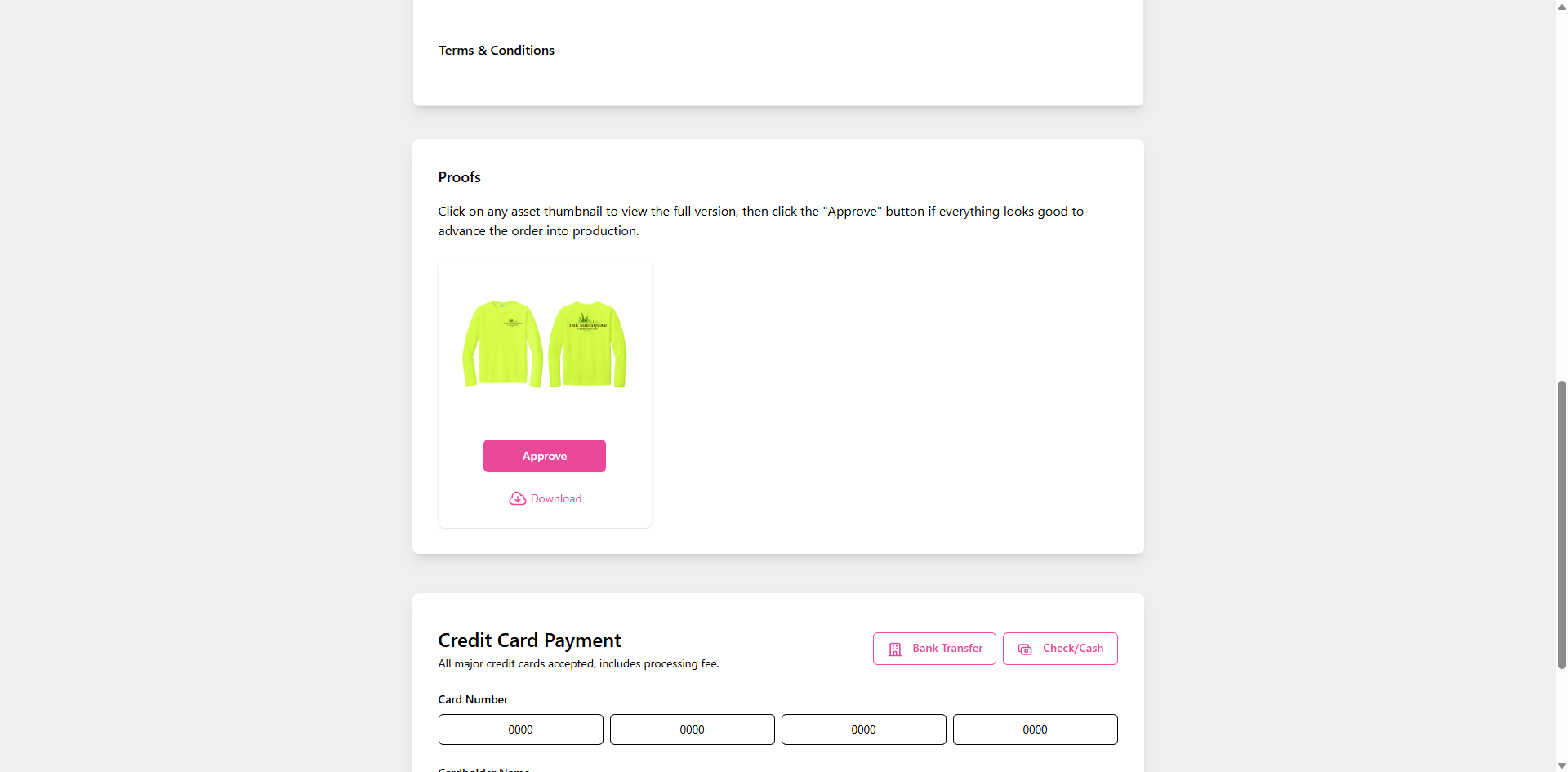
5. View Proofs
The customer will also be able to view any attached proofs
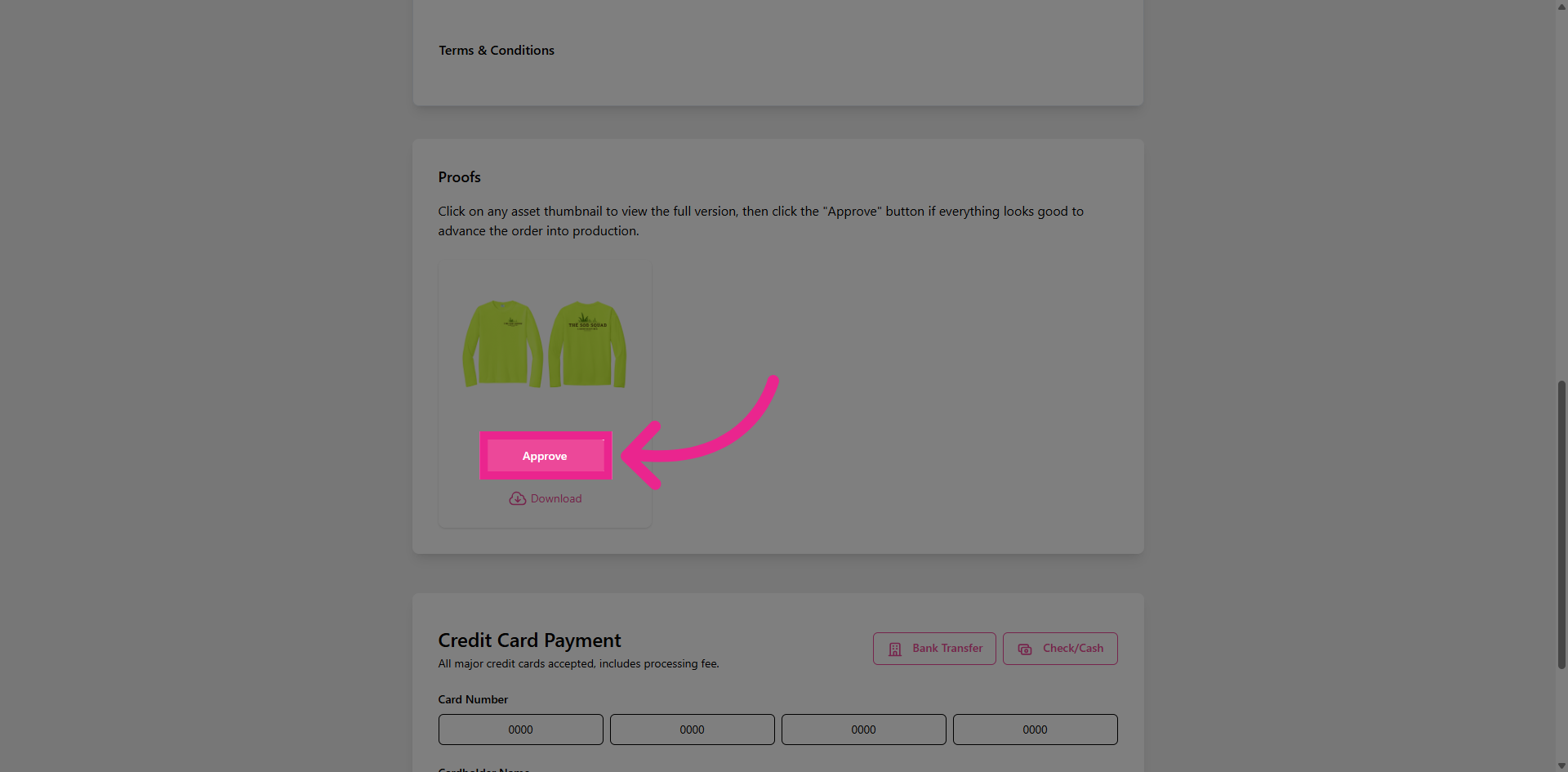
6. Approve Proofs
and approve them directly.
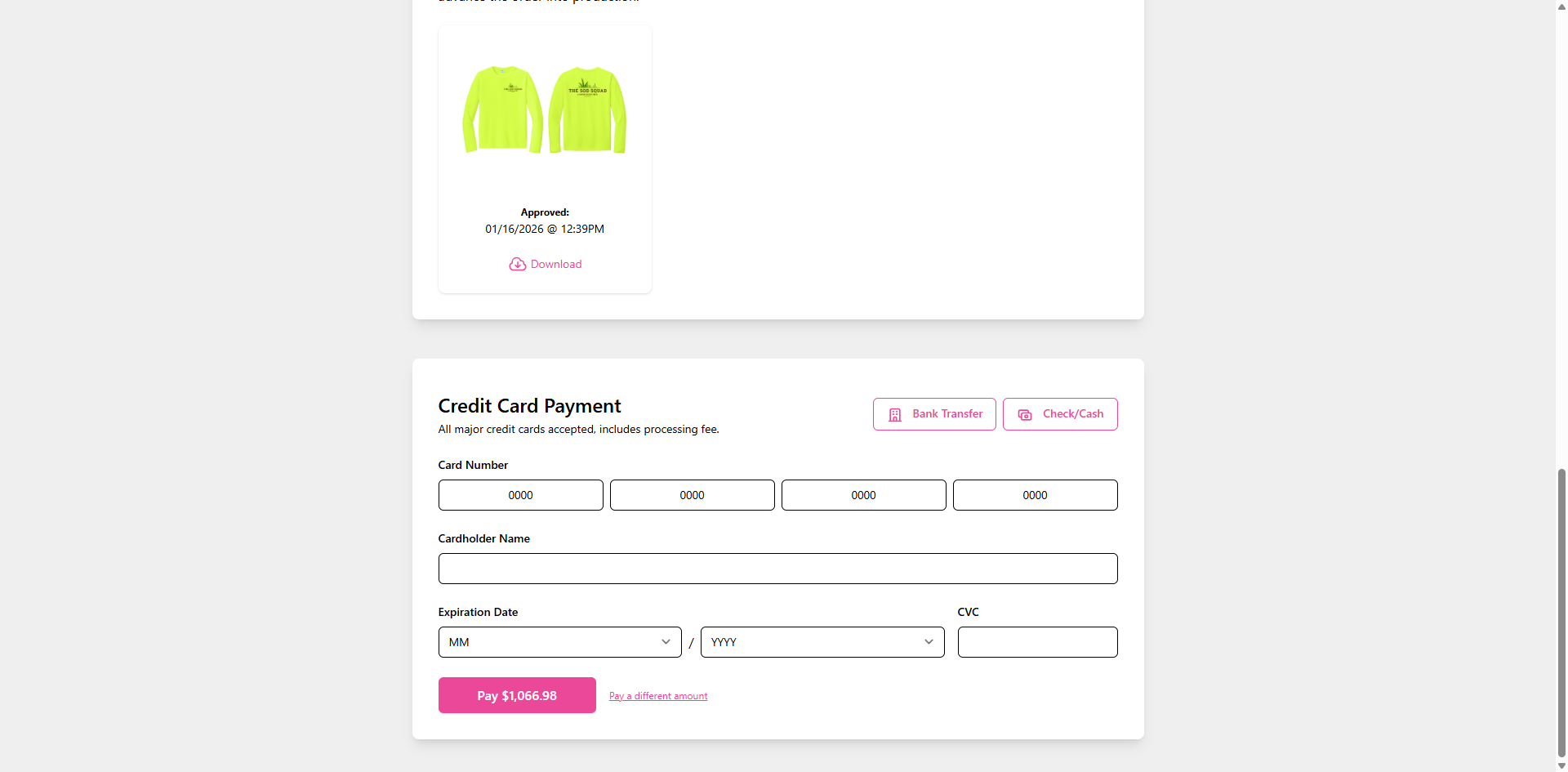
7. Submit Payment
If the customer's profile is set to pre-pay, they will be able to submit their payment directly at the bottom of the page. If the order is in review, once payment is submitted, it will automatically push the order through to sourcing status. That's it! The Public View page is just one of several great tools in PromoSoft that makes the entire process as simple and efficient as possible.