
Learn
How do I manage Items?
In this tutorial you will learn how to add a new item to the database
1. Introduction
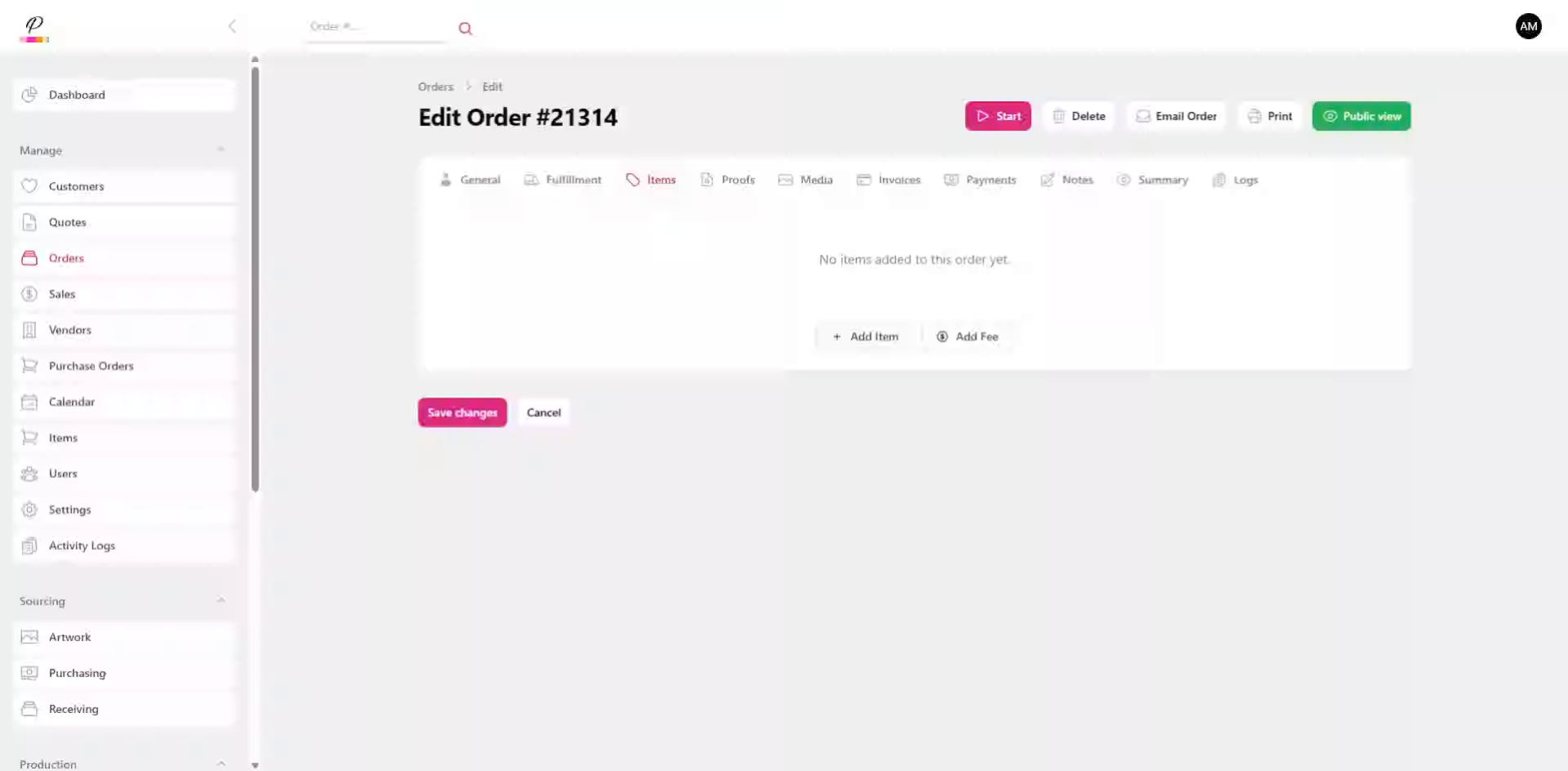
There are two ways to do this, the first is within the order creation. If you don't know how to create an order, you can go back and view that tutorial later.
2. 1st Method - Within Orders
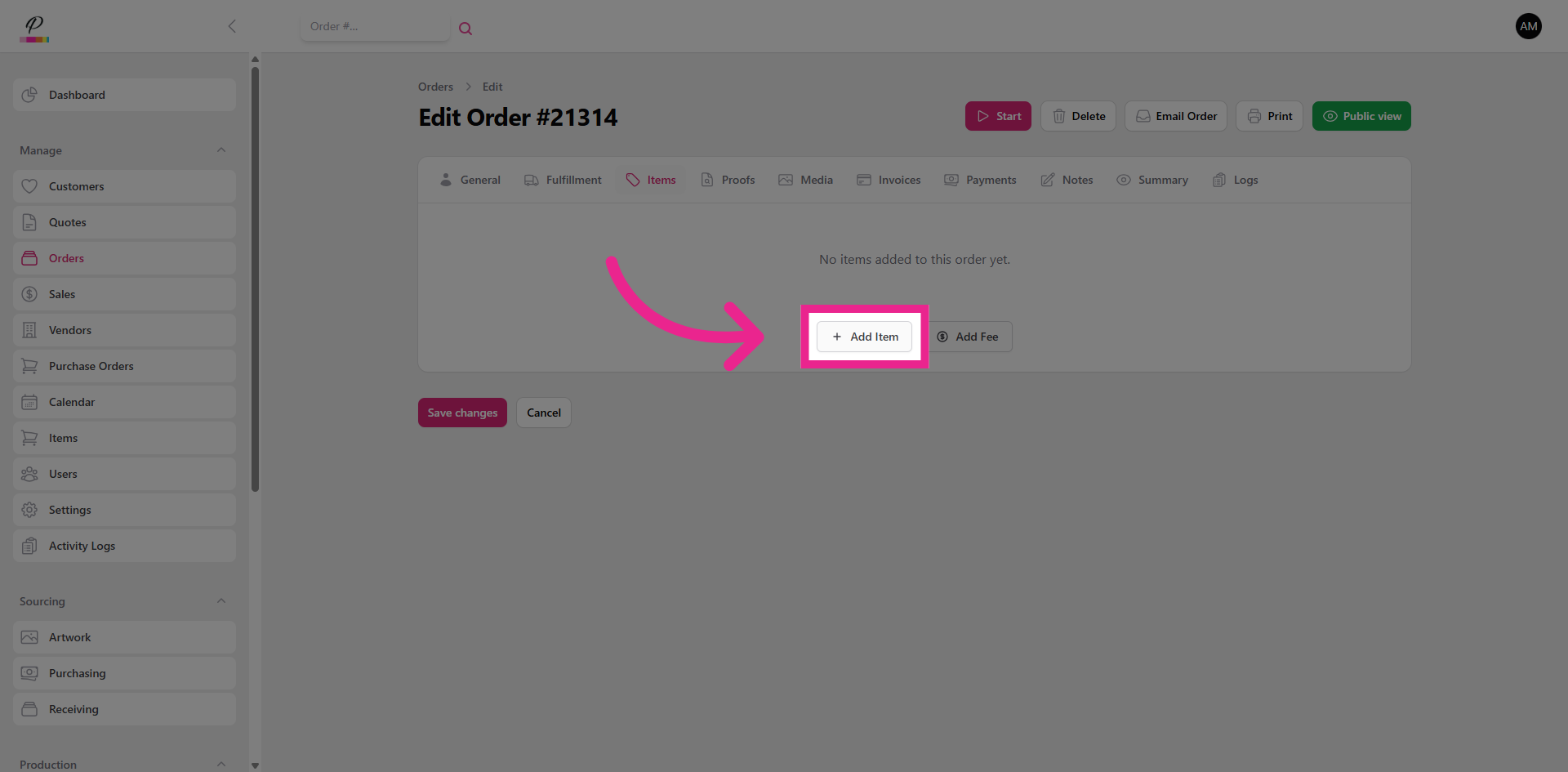
Within the Orders, Click Add Item.
3. Add Item
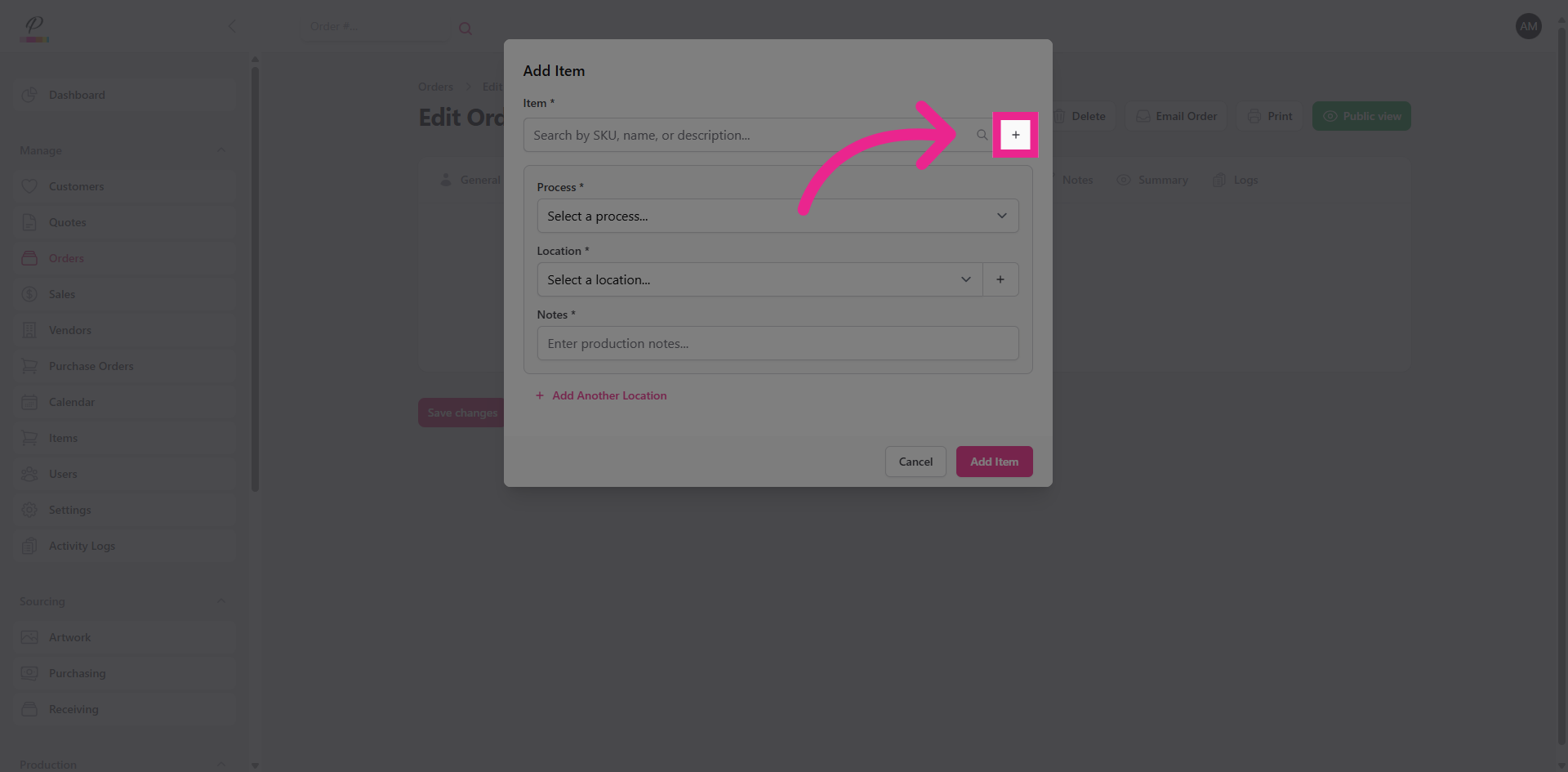
Now click the plus symbol.
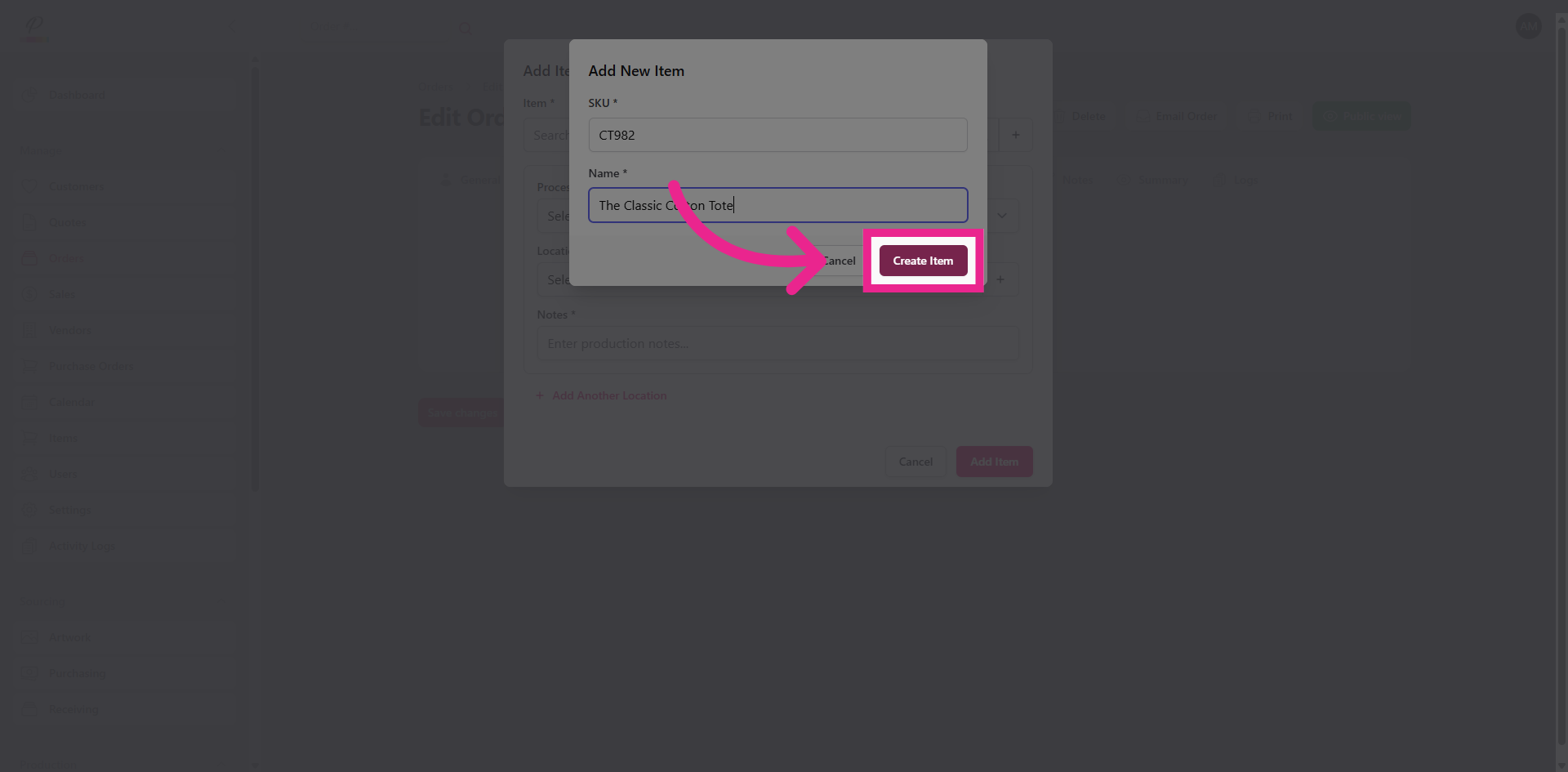
4. Enter Item Number/SKU and Product Name
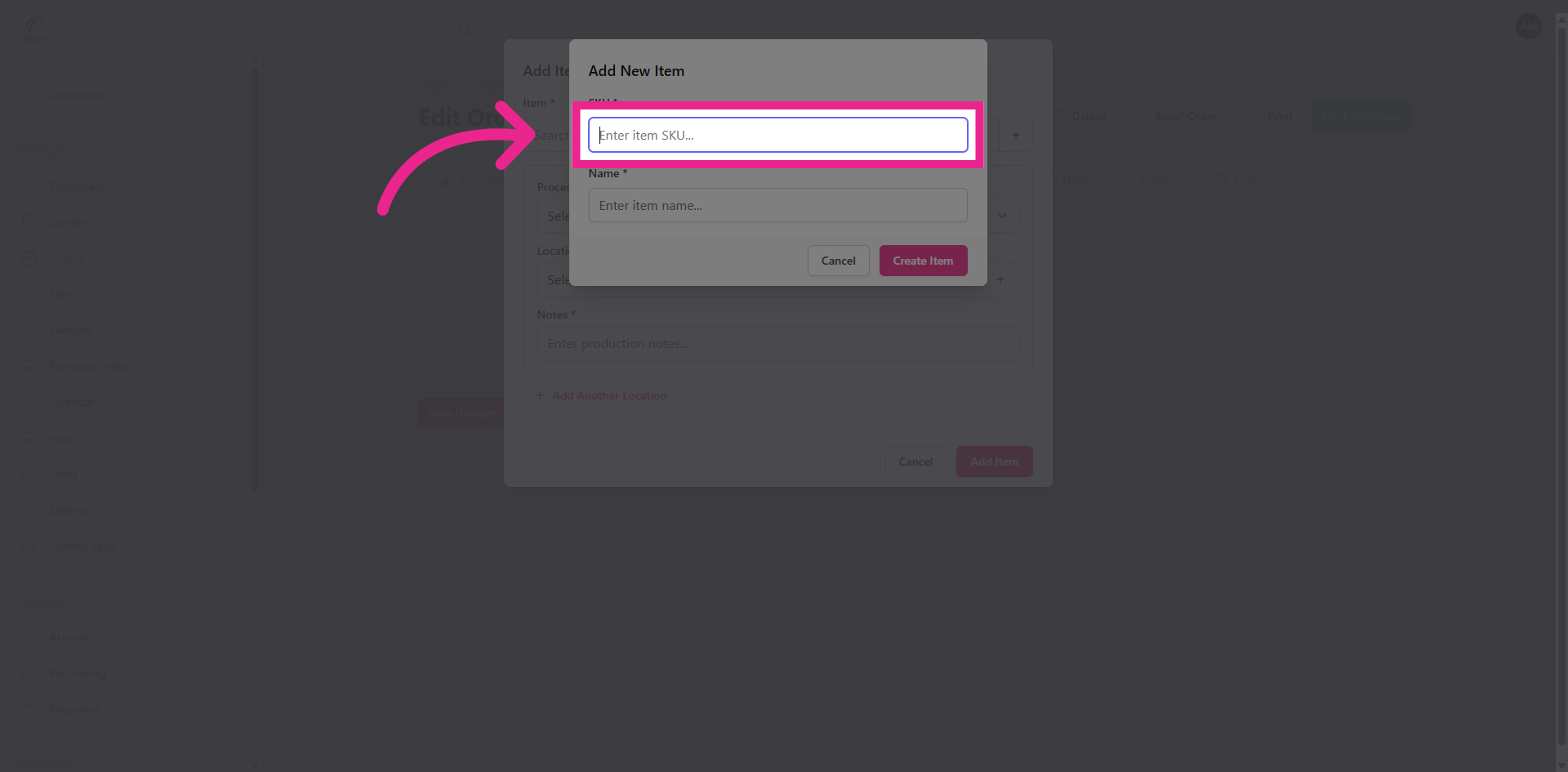
Enter the item number, and assign a name to the product. Then click add item once you are finished.
5. Create Item
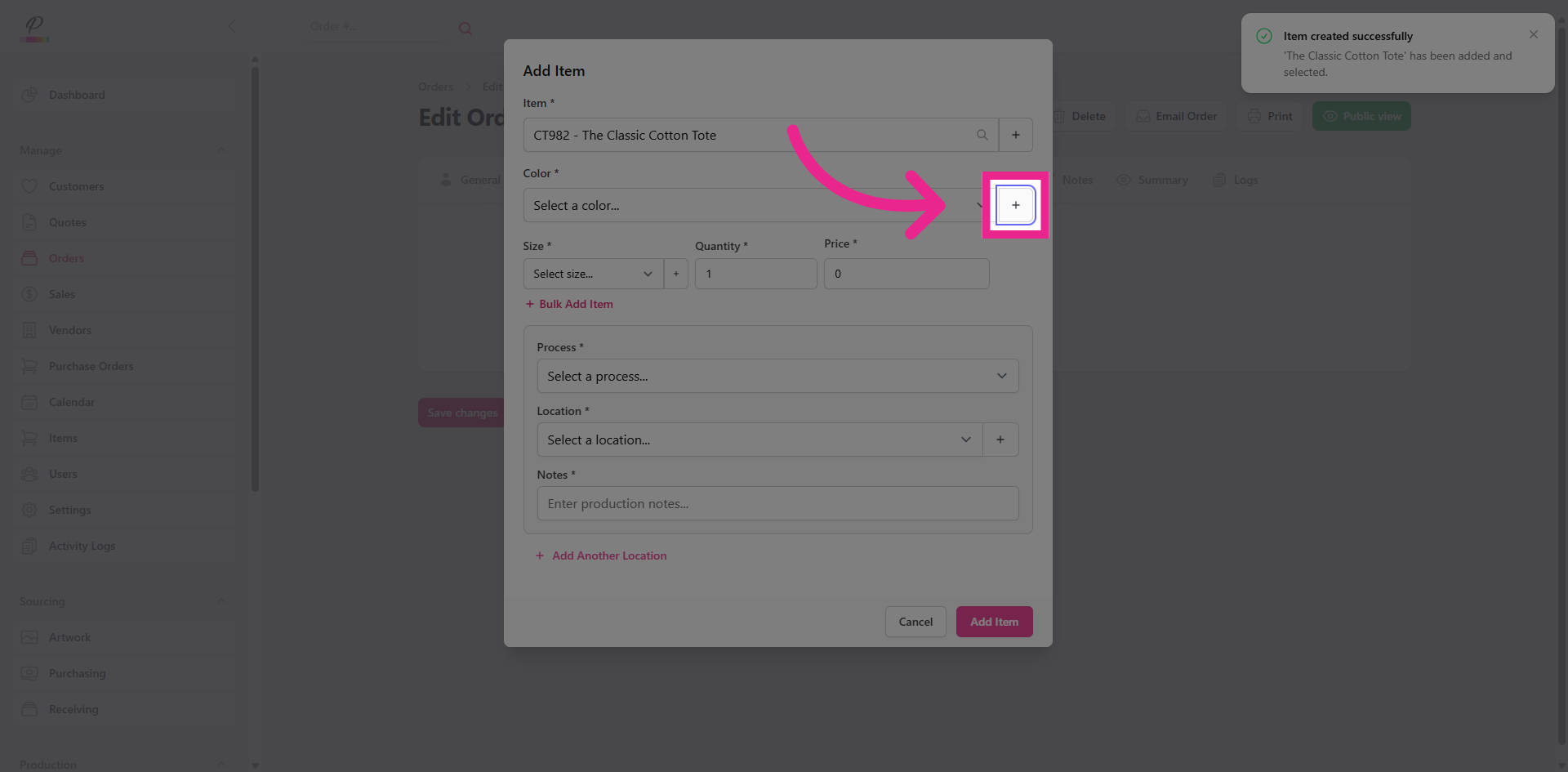
6. Add Color Options
Now add as many color options as needed.
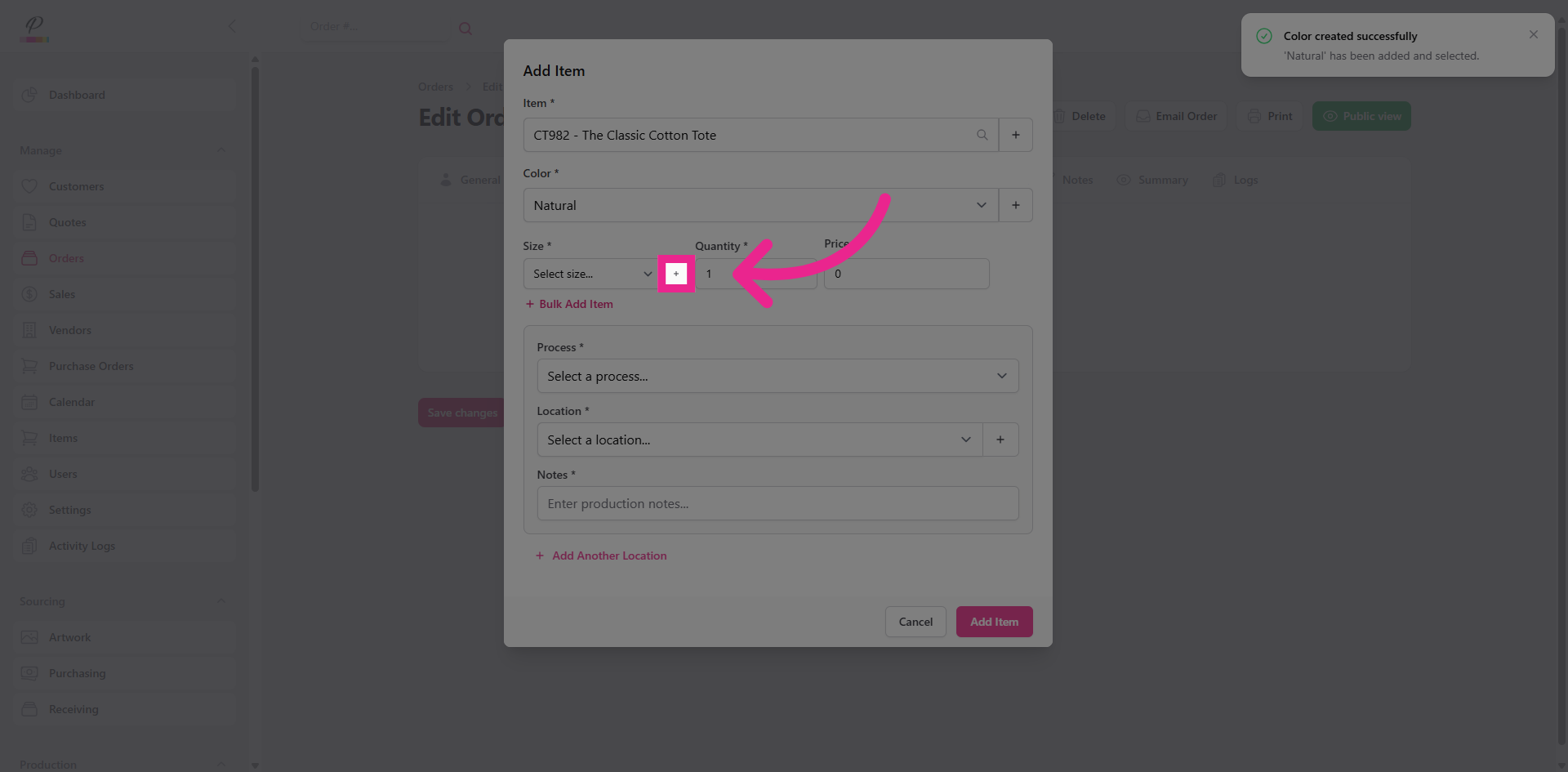
7. Add Size Options
Now let's add sizes. If the item does not have a size, you can just create something generic.
8. 2nd Method - Within Items Section
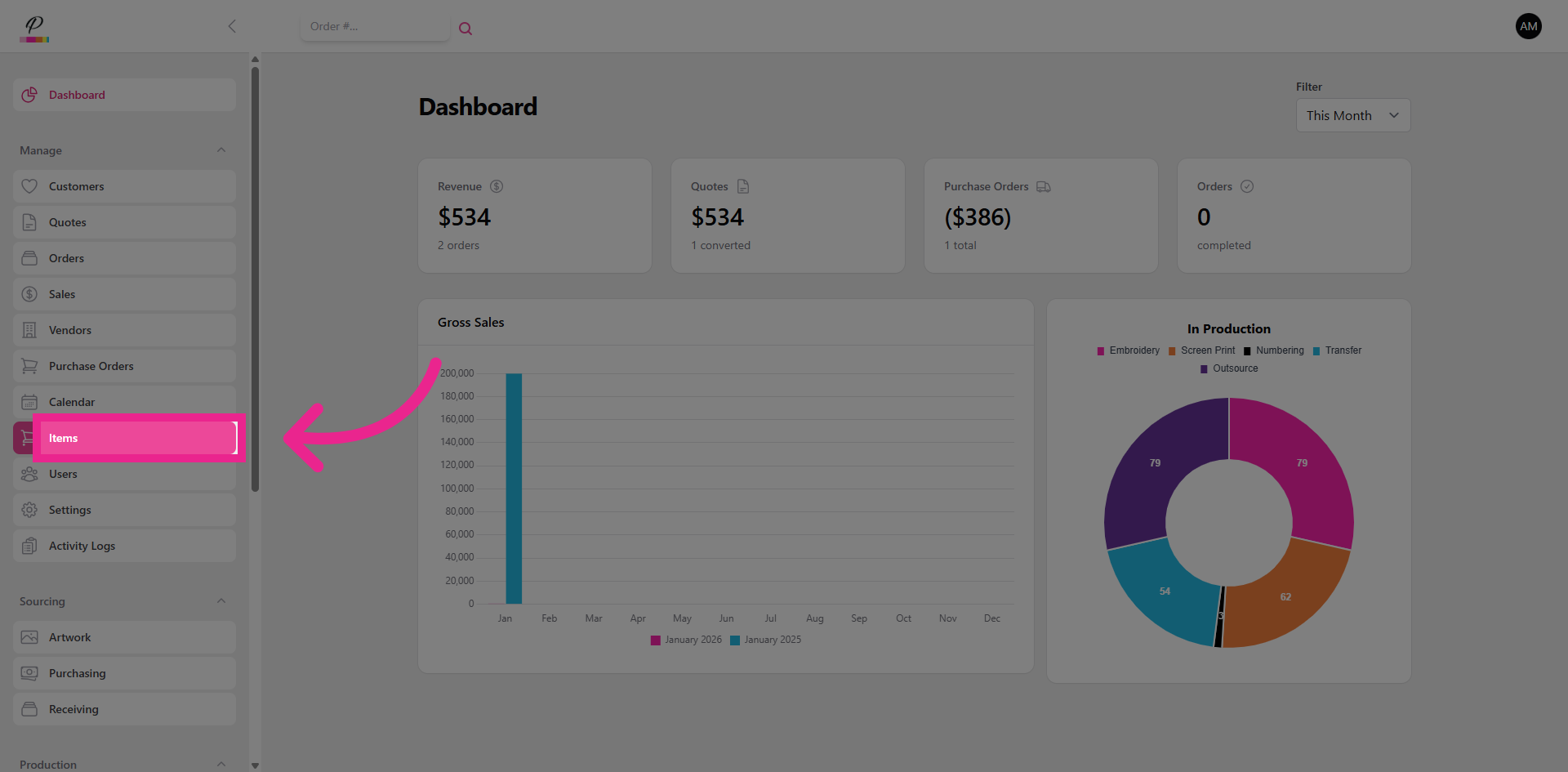
Navigate to the Items section on the side menu.
9. Add New Item
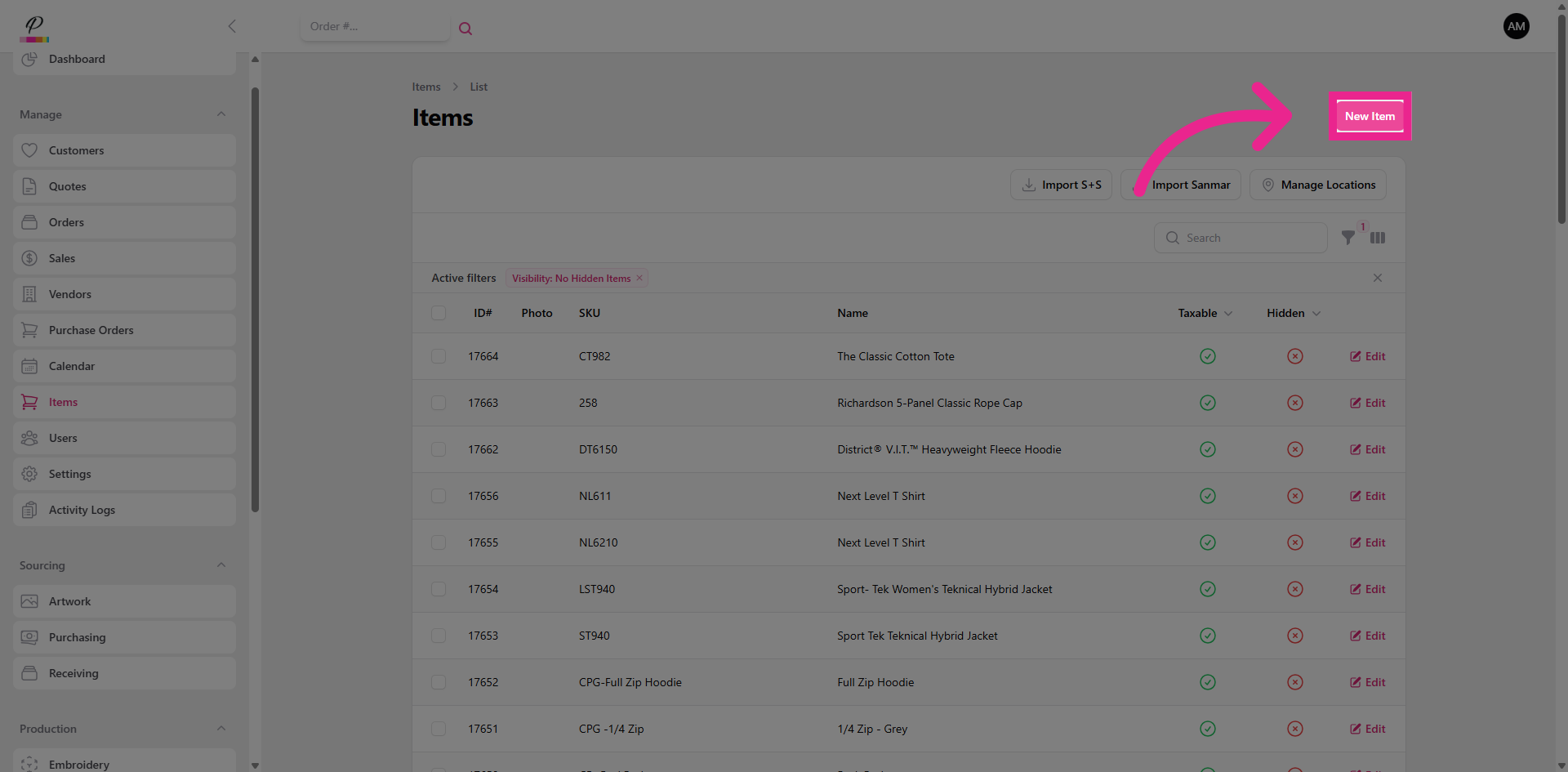
Click New Item
10. Add Product Details
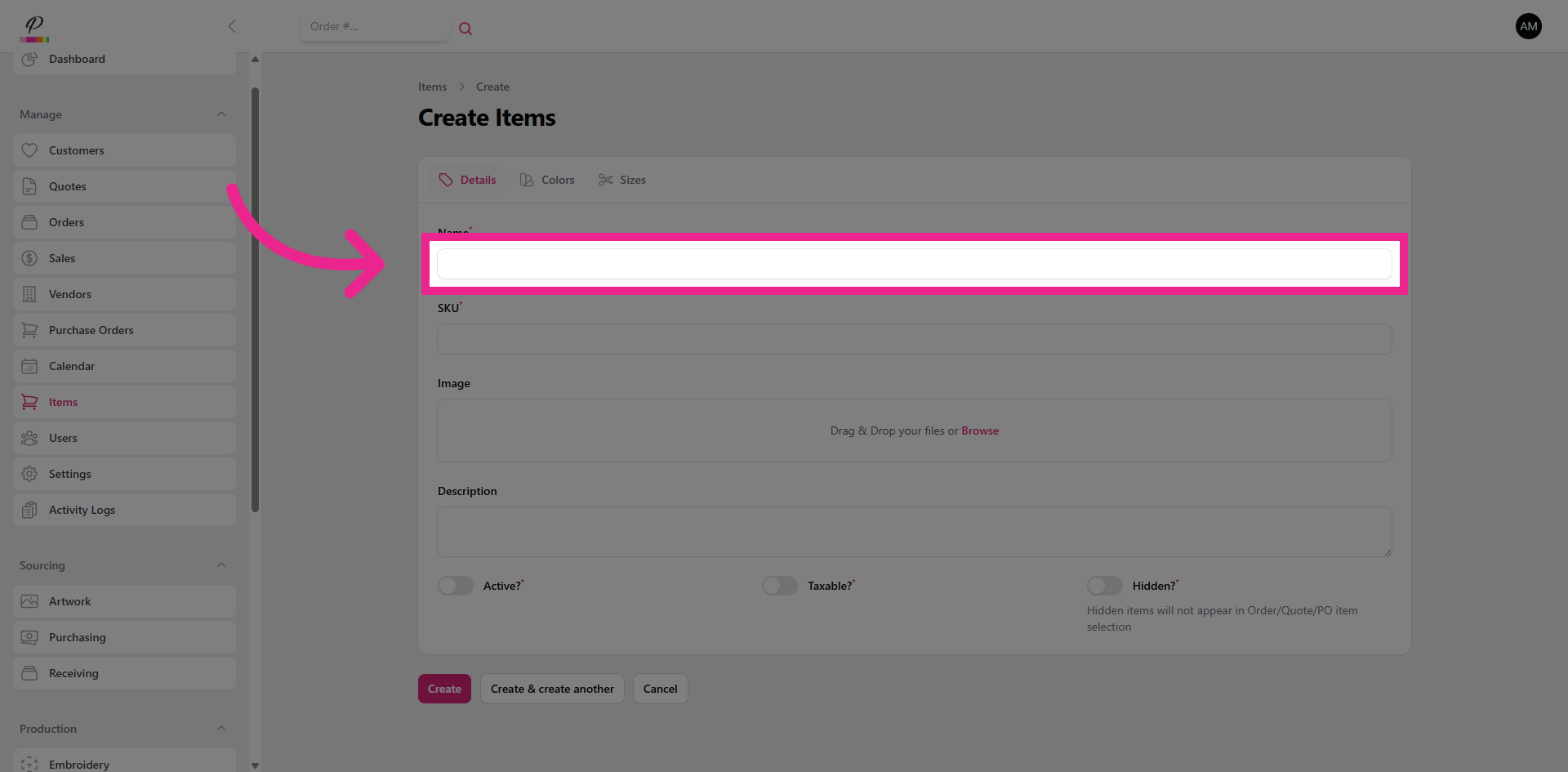
Just like we did before, add in the product name and item number.
11. Add Description
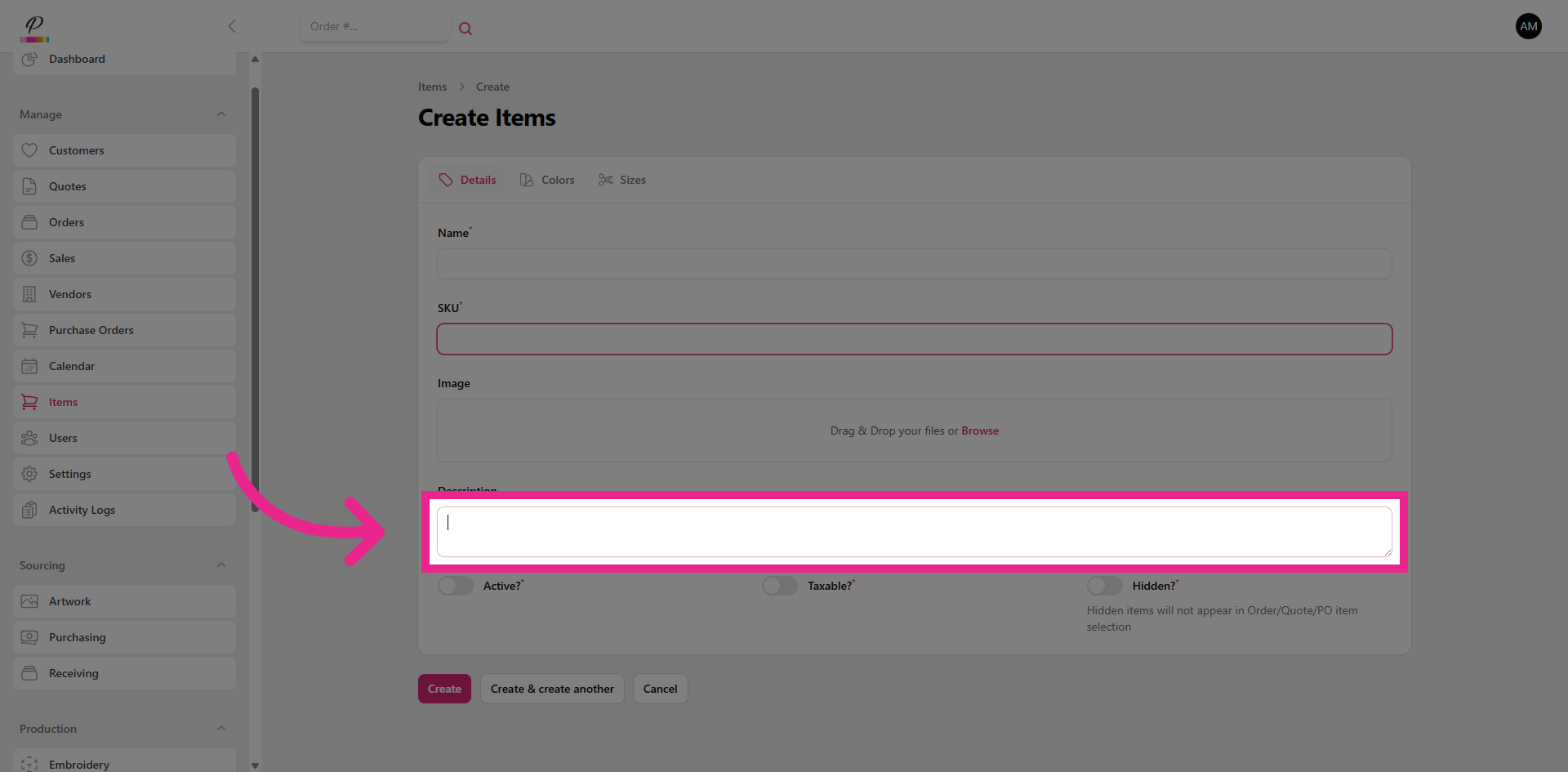
Here you can add a more detailed description of the product if you would like to.
12. Toggle Active Status
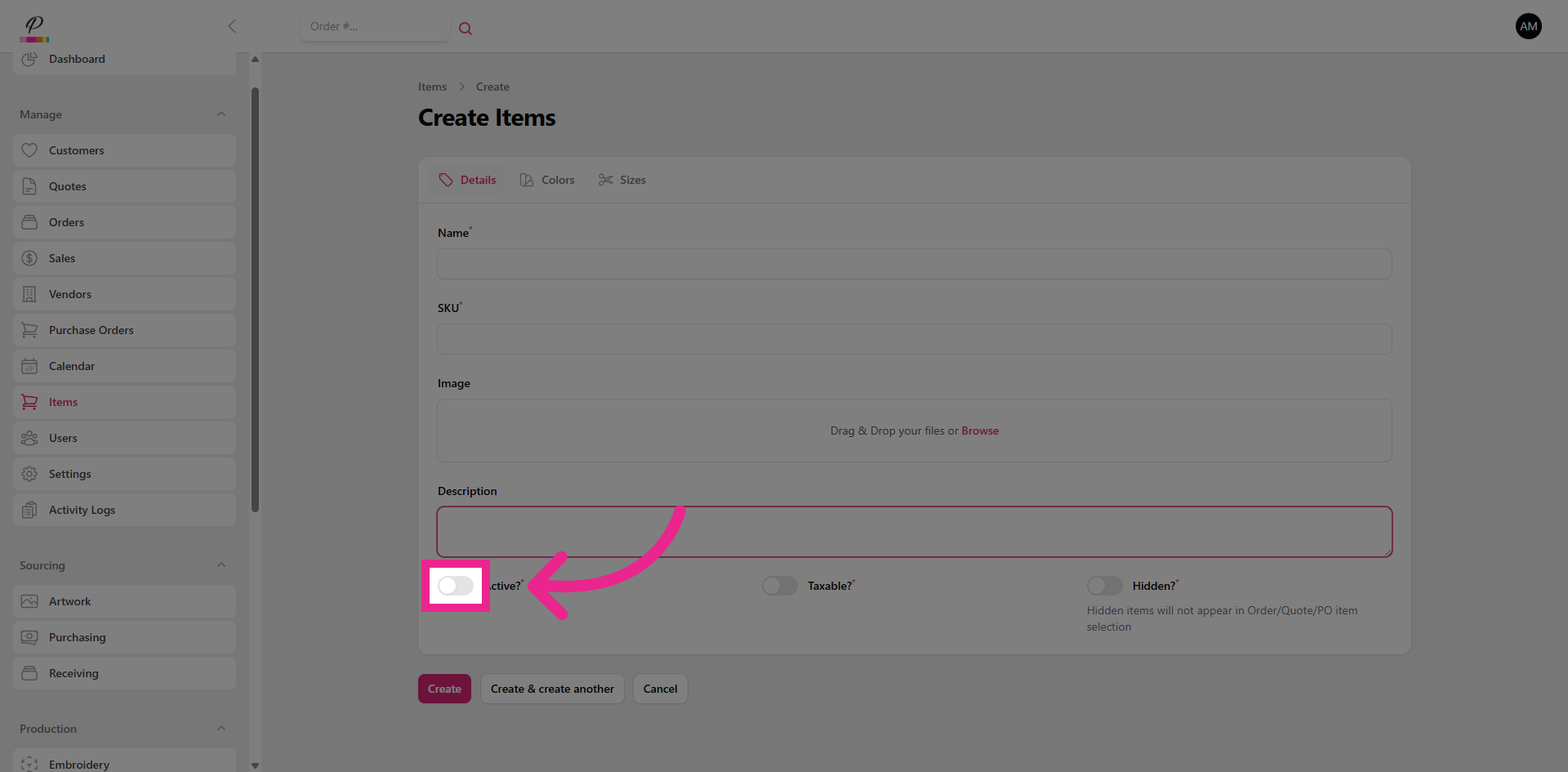
Toggle the item as Active,
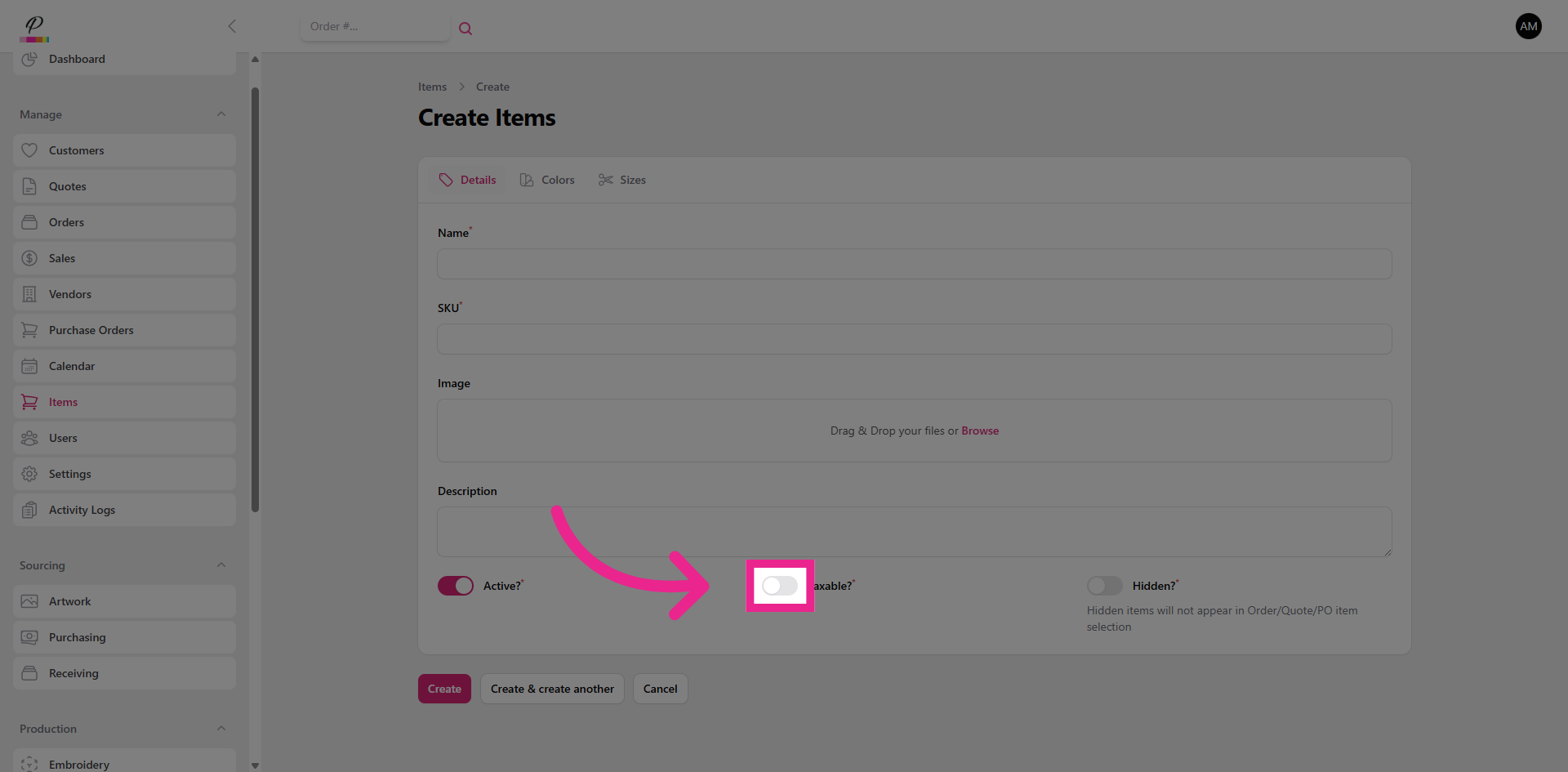
13. Toggle Taxable Status
and Taxable.
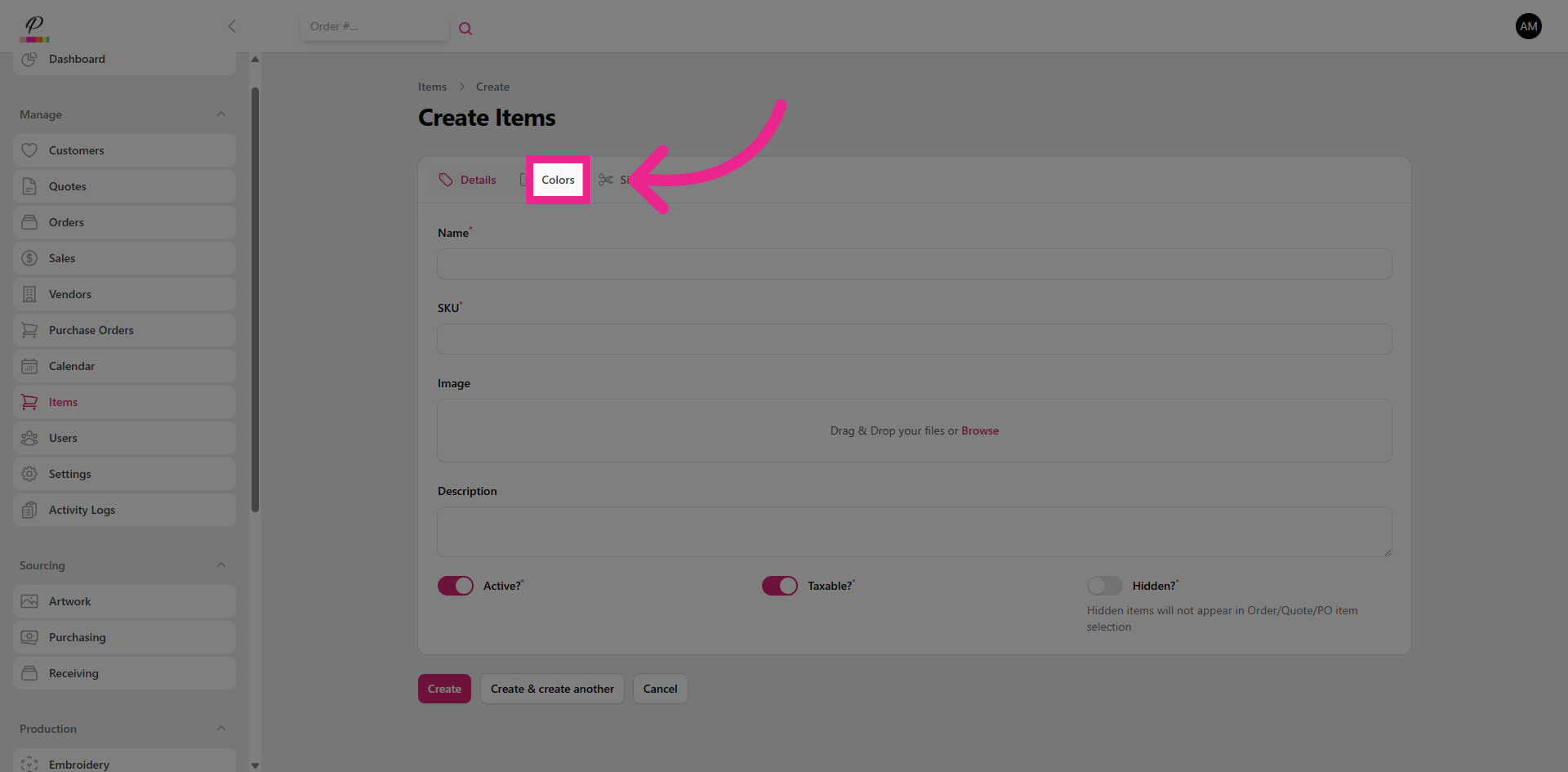
14. Colors Tab
Click the Colors tab to add all available color options.
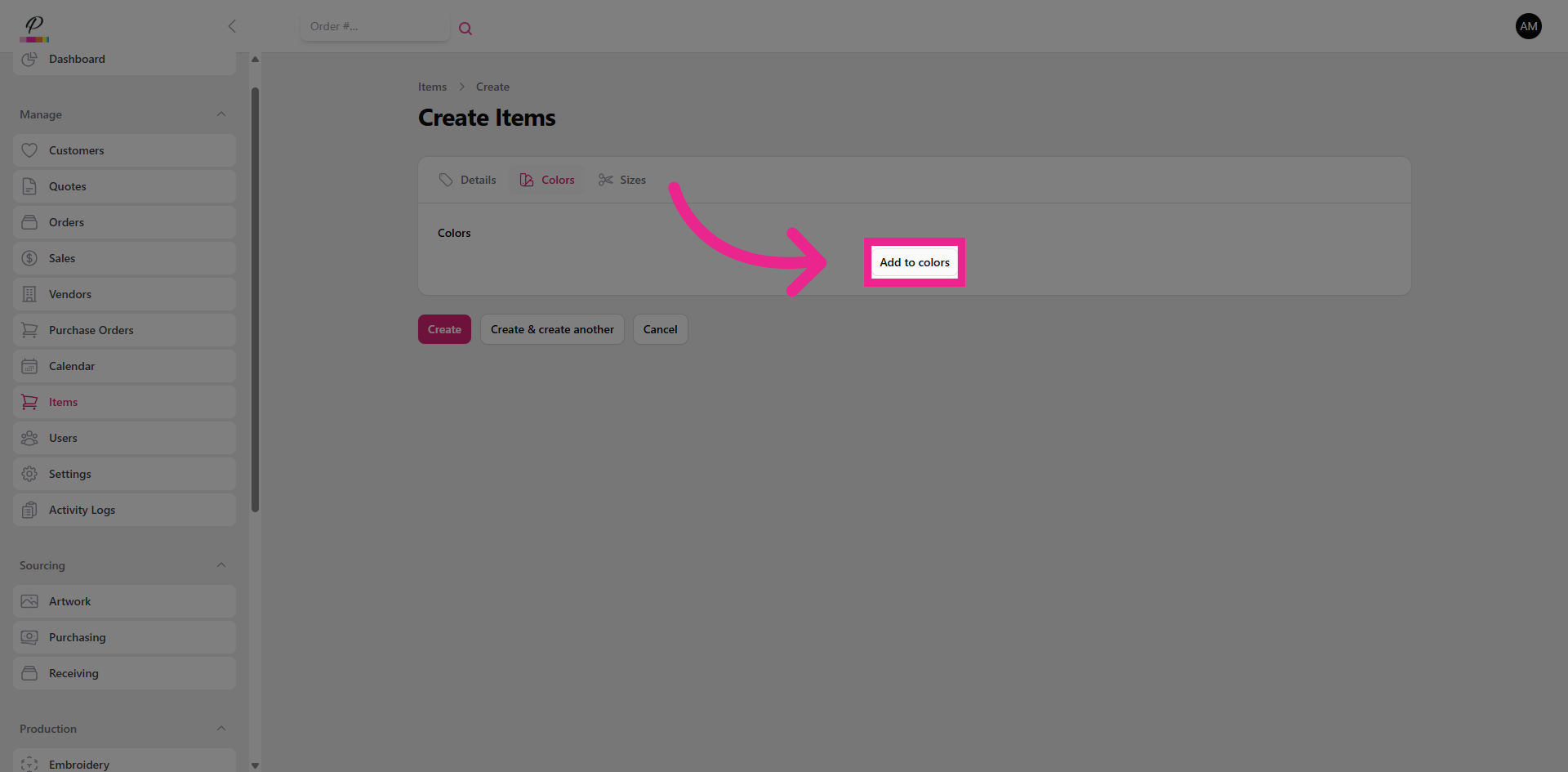
15. Add Color to Item
16. Sizes Tab
Then add size options.
17. Add Size to Item
18. Create Item
Don't forget to click Create to save all the details. That's it! You will now be able to quickly find the item while creating an order and add additional colors and sizes if needed.