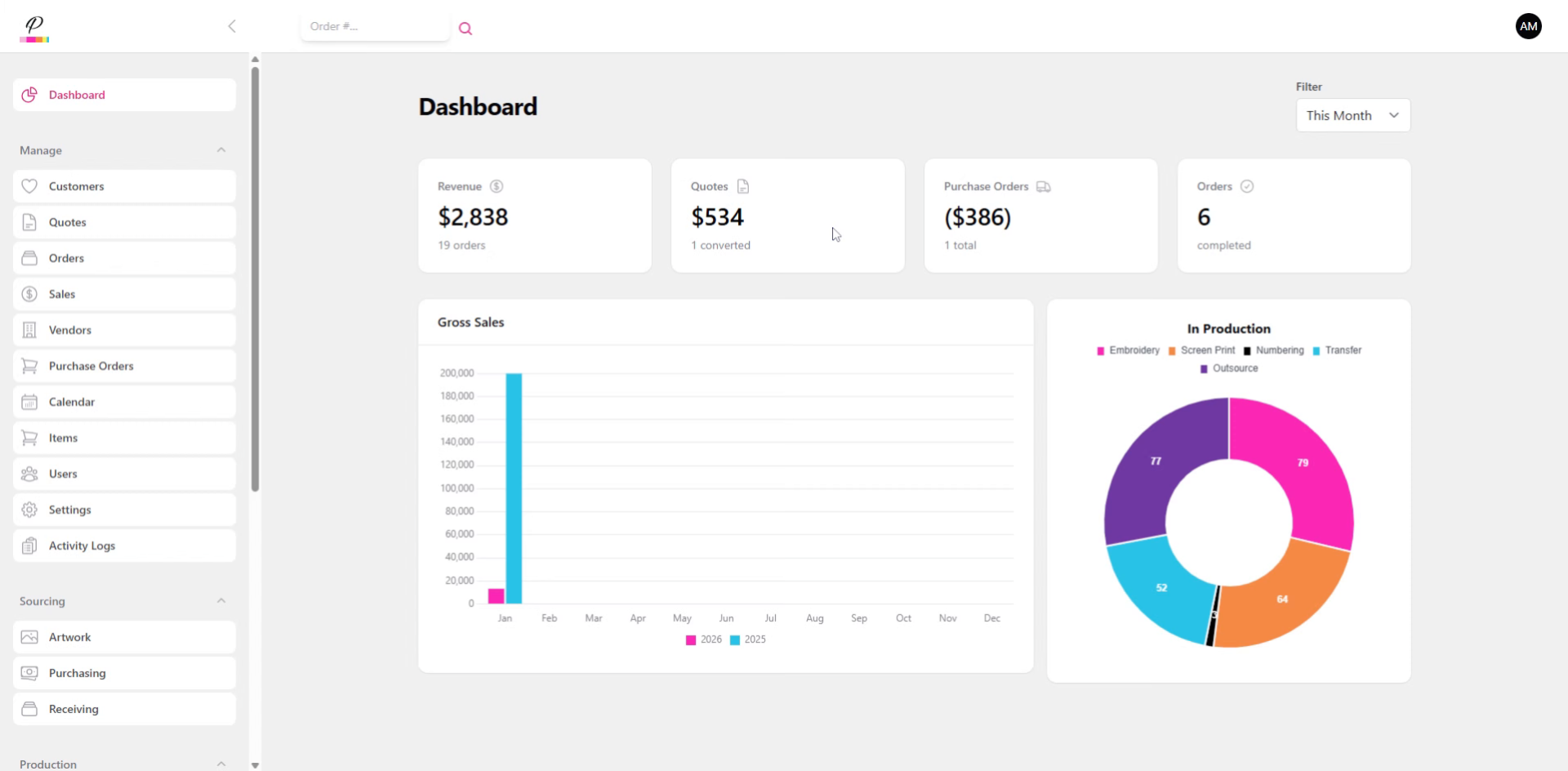
This tutorial guides you through creating invoices in PromoSoft
1. Introduction
Let's take a quick look at Invoicing !
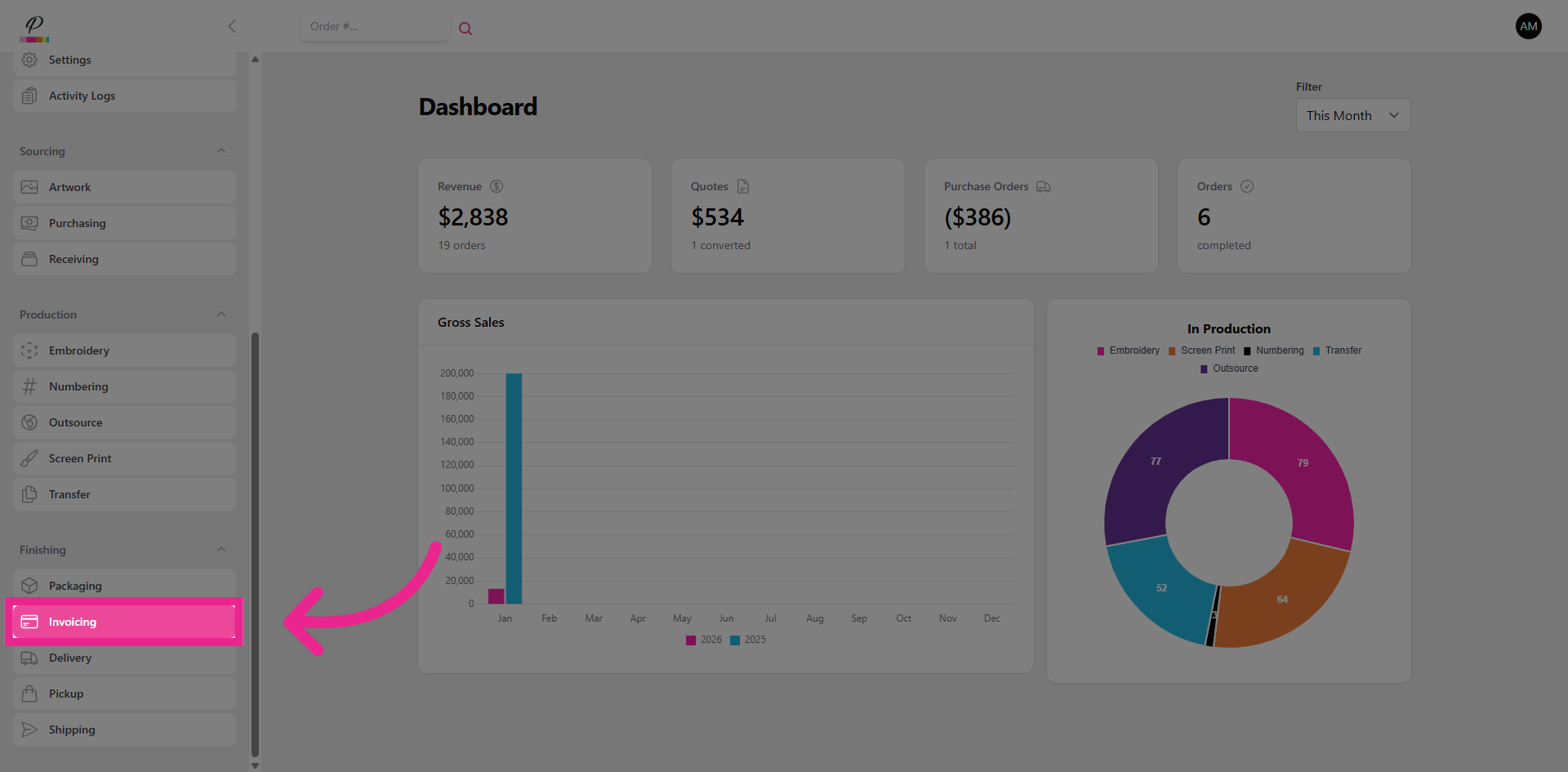
2. Navigate to Invoicing
You can locate the Invoicing queue under Finishing on the side menu.
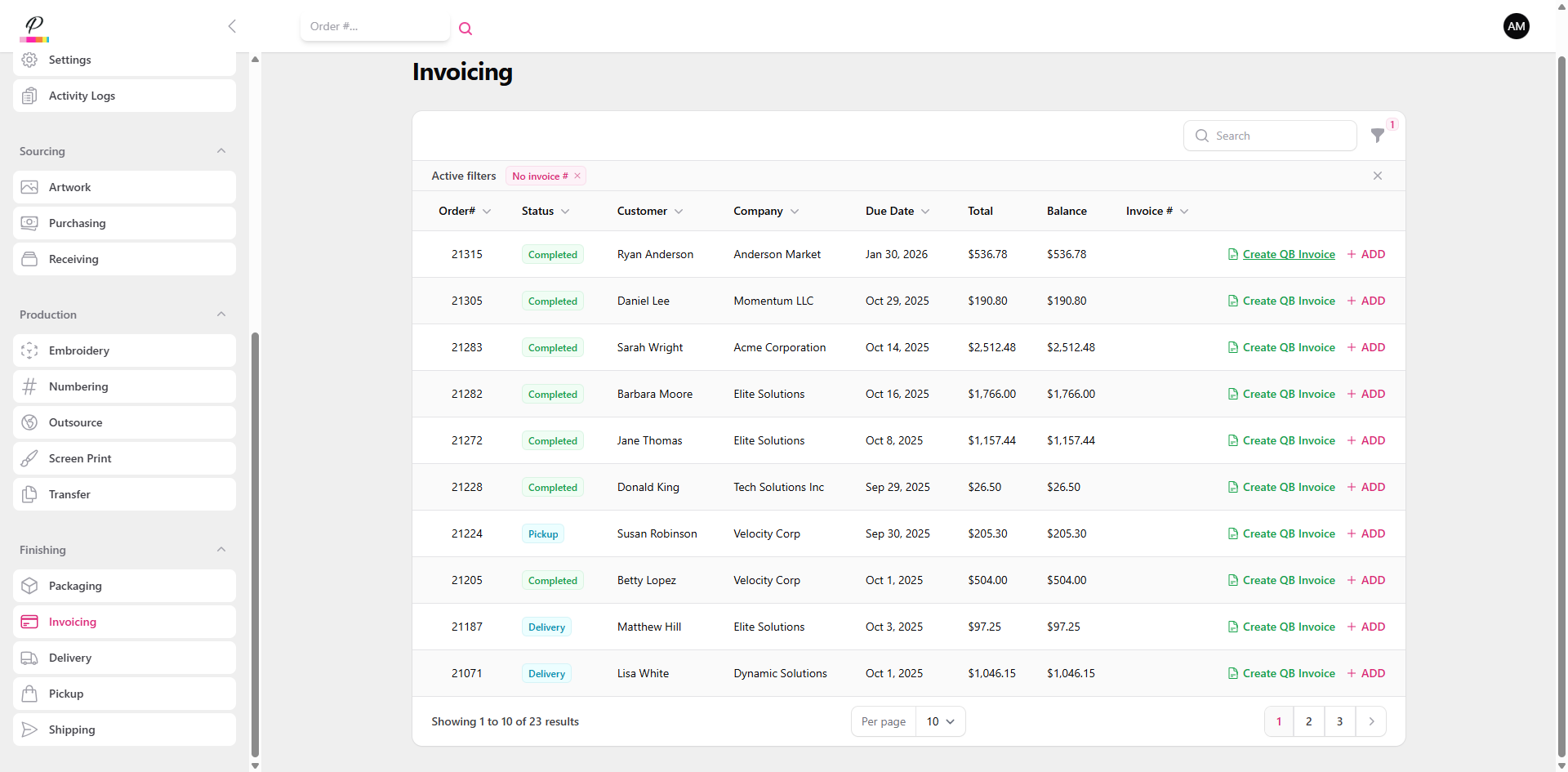
3. Overview
The orders will go into the invoicing queue when one of two things has occurred. If the customer submits payment via the payment portal, the order will then drop into the queue, regardless of production status. If the customer has not submitted payment, the order will drop into the queue once the status has been updated to Finishing.
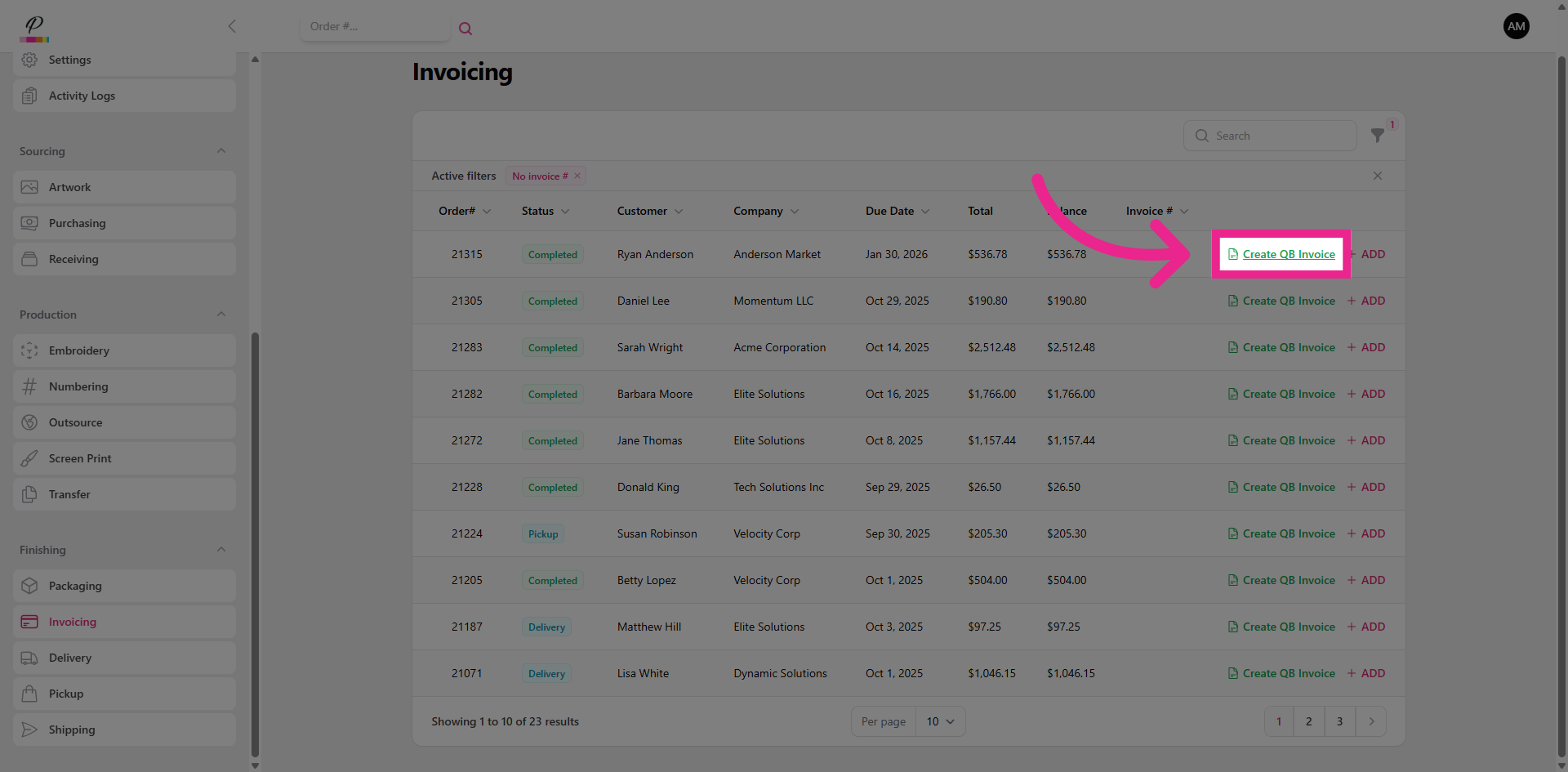
4. Create Invoice
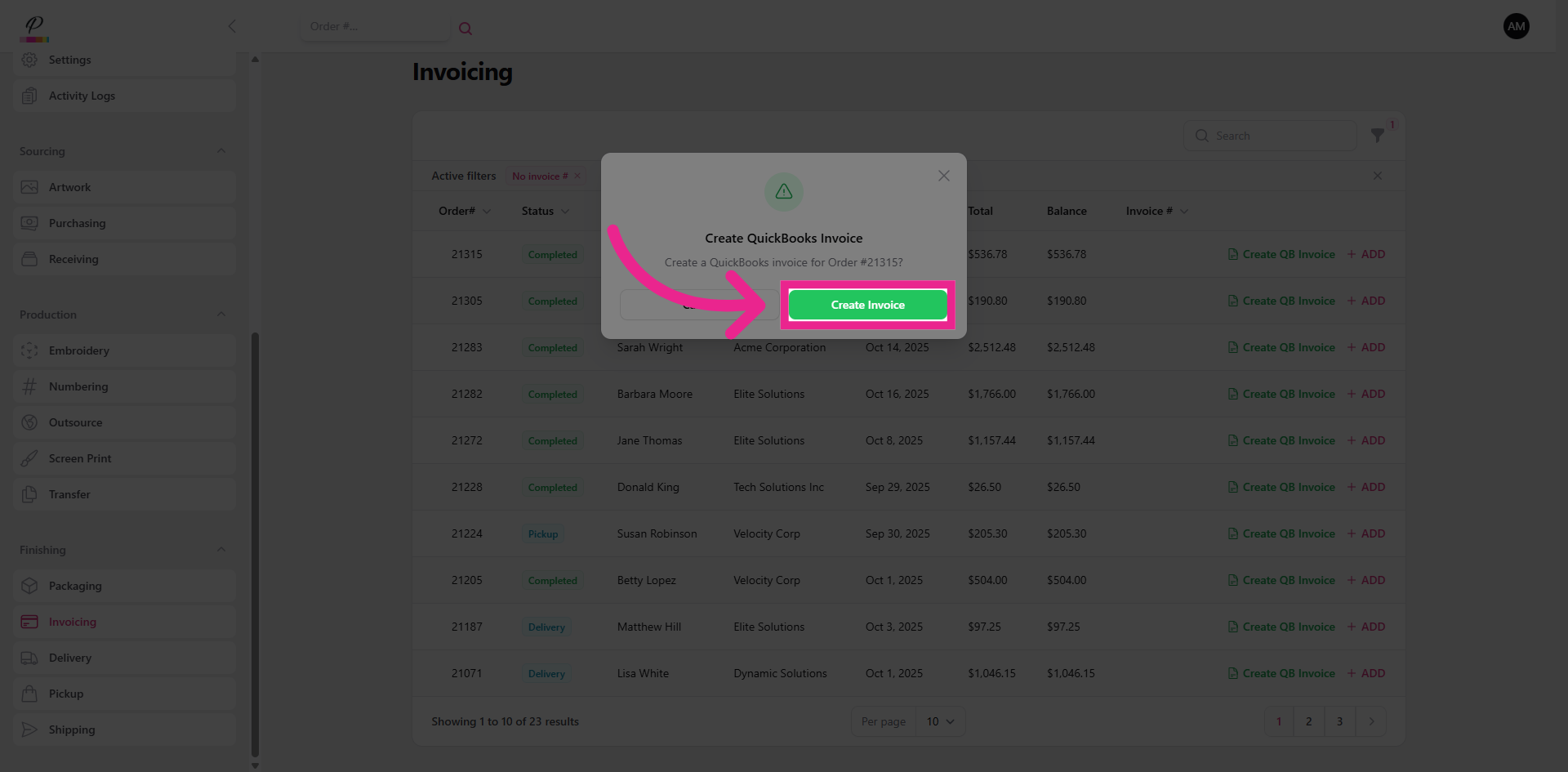
Click the Create Quick Books Invoice button to generate an invoice number for the order. The system will then automatically transfer a matching invoice number to your linked Quick Books account, referencing the order number.
5. Initiate Invoice Creation
Once the Invoice number has been generated, the order will automatically be cleared from the queue.
6. Create Invoice
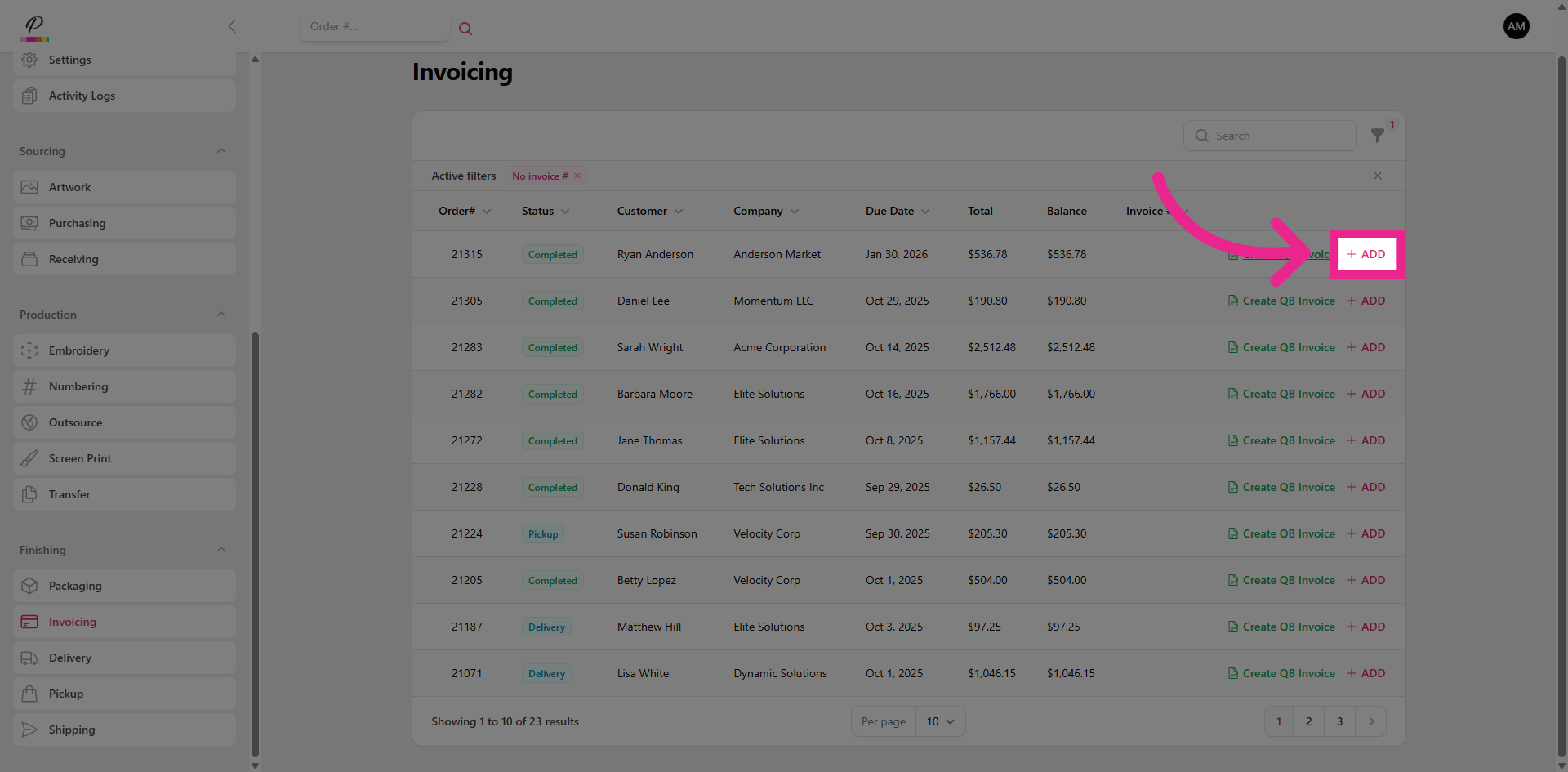
If you need to create a custom invoice number, you can do that here. So easy! PromoSoft is designed to streamline the entire process from start to finish, making each step as efficient as possible.