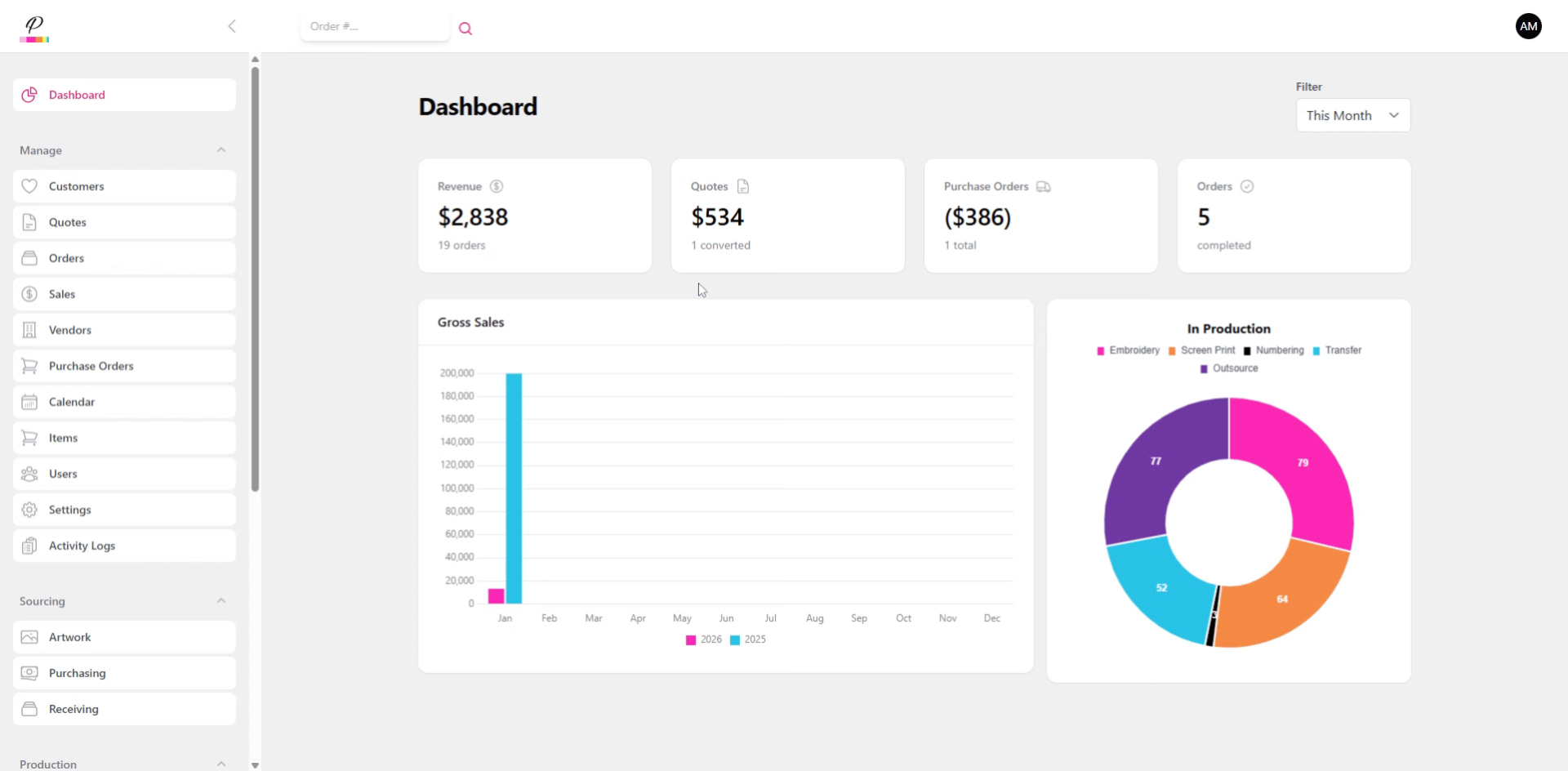
This tutorial guides you through the finishing process queues the last steps in completing the order.
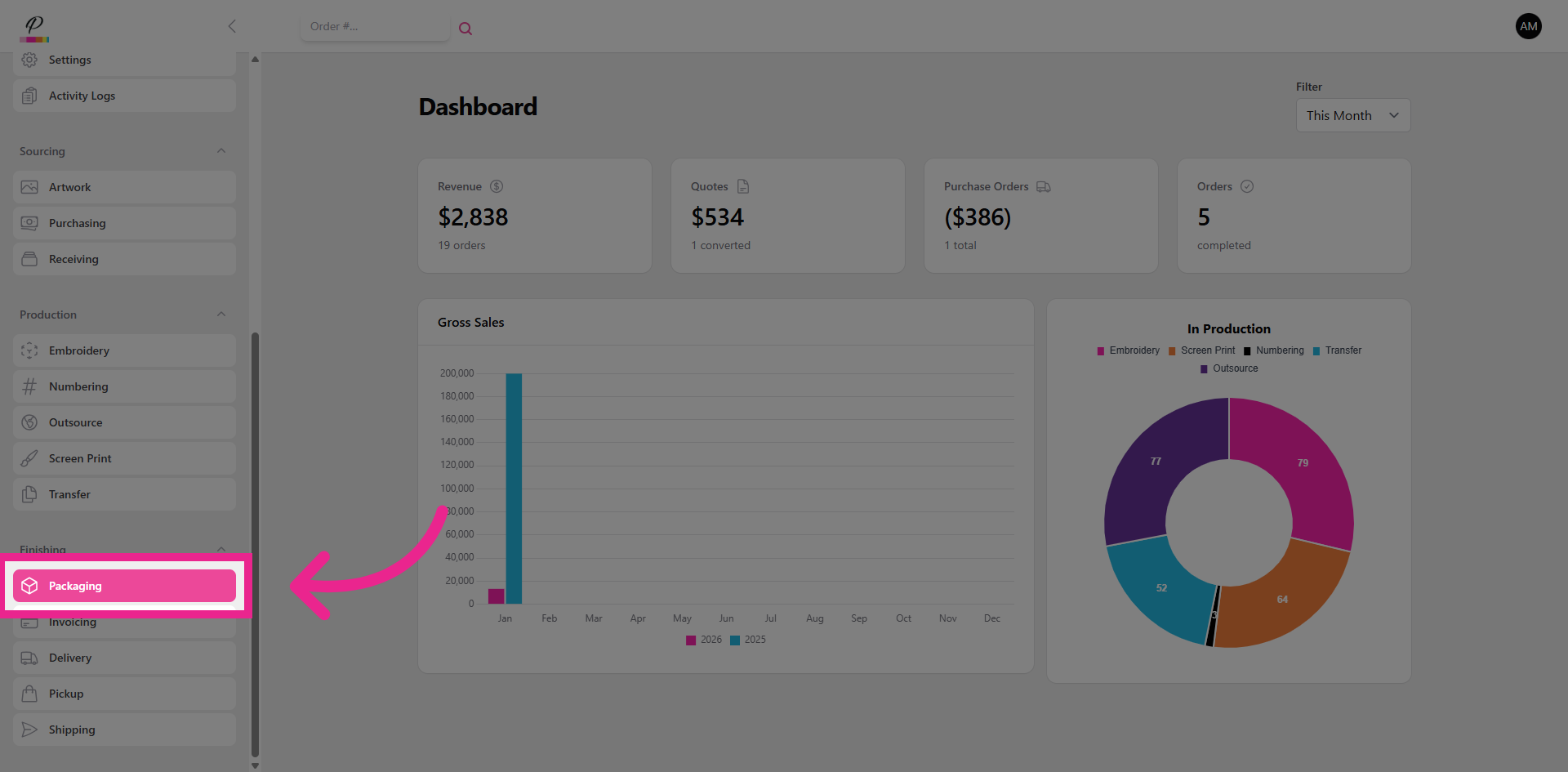
2. Navigate to Packaging Section
First, let's go to packaging.
3. Access Shipping Tab
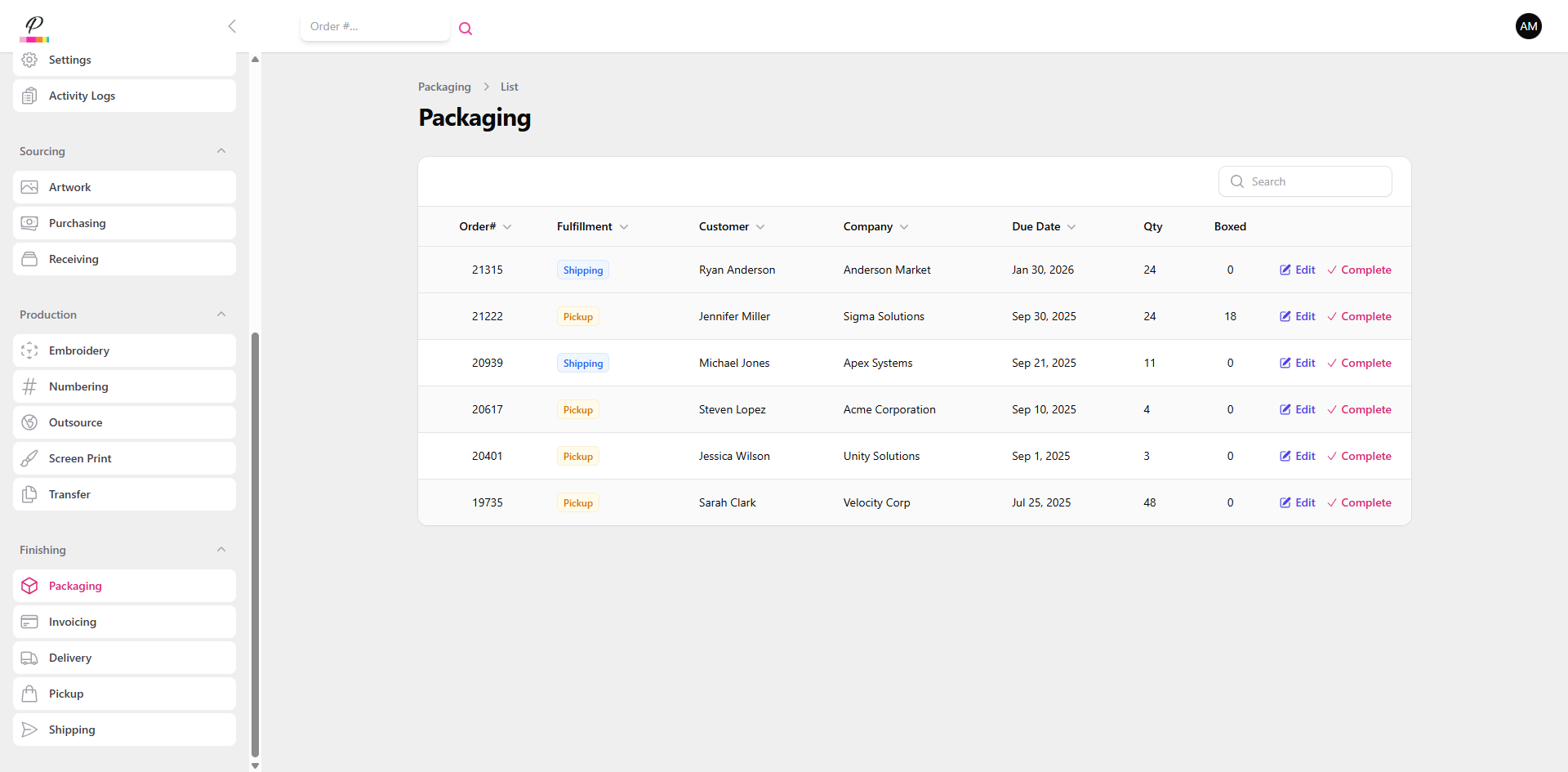
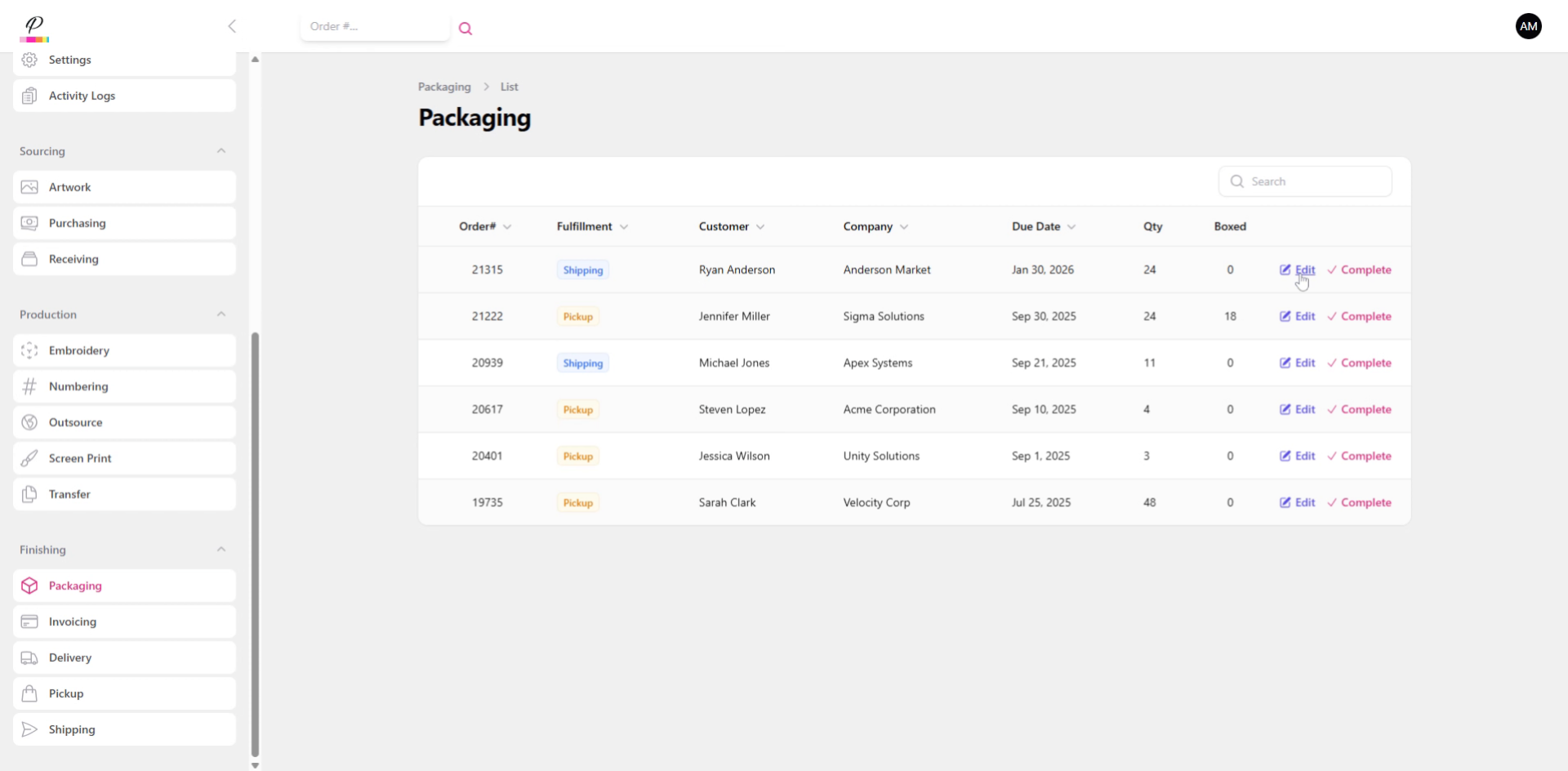
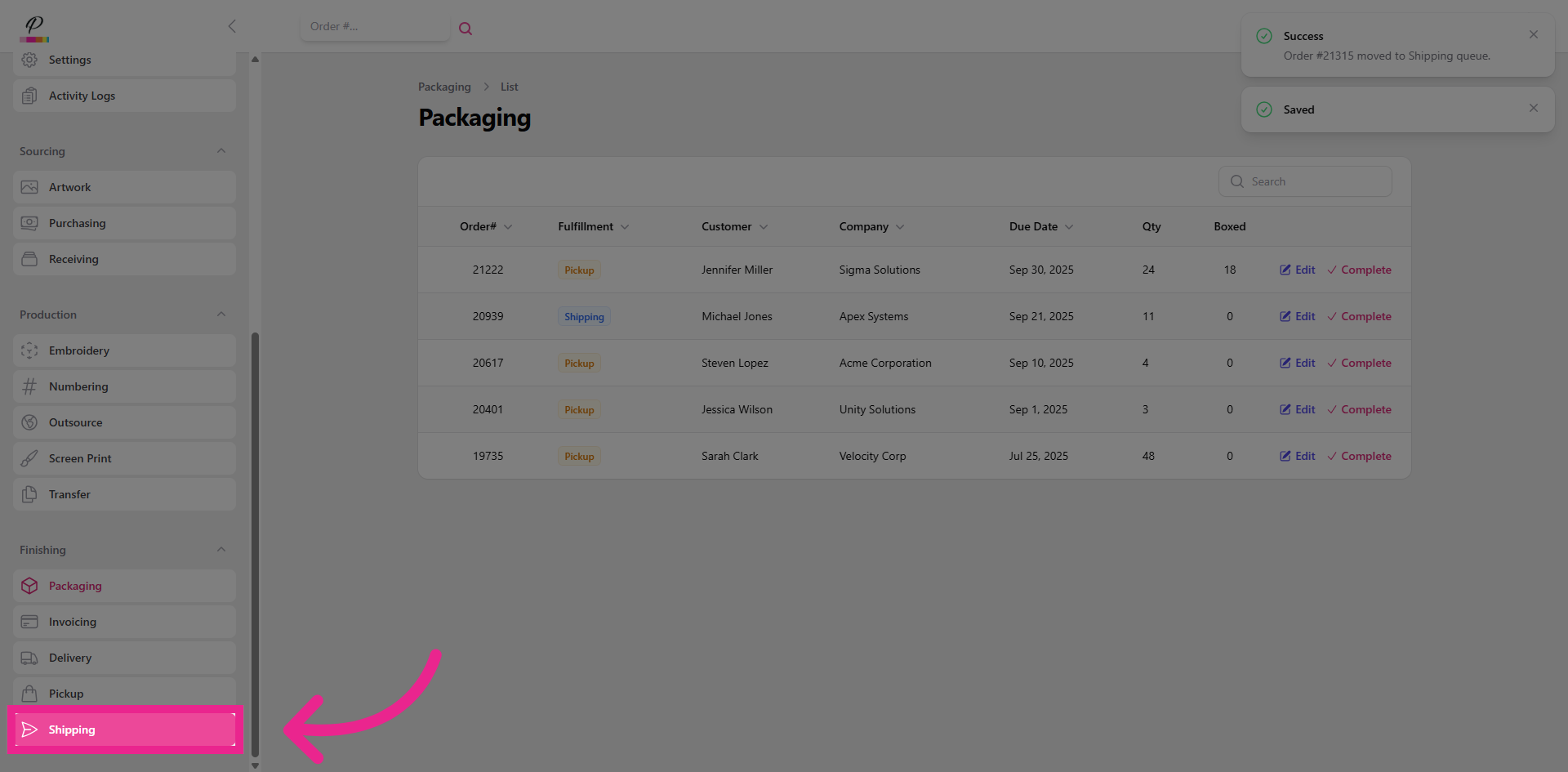
Packaging is the final destination for quality control. Here it should be verified that the products are packaged neatly and orderly before being presented to the customer.
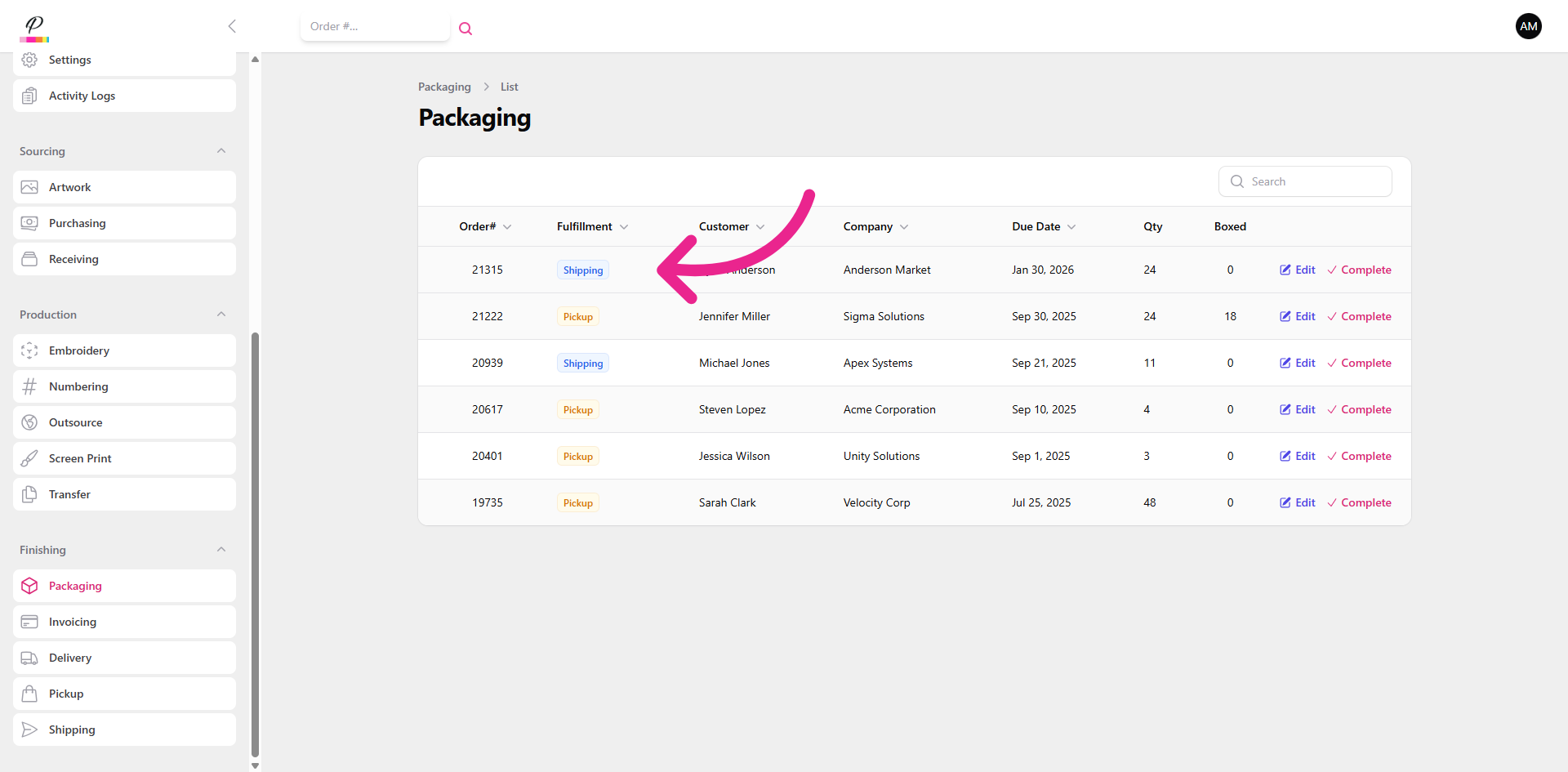
4. Access Shipping Tab
In this column, you will see the fulfillment type which is helpful in letting the packaging department know which department will be responsible for transferring the completed order to the customer.
5. Enter Package Quantity
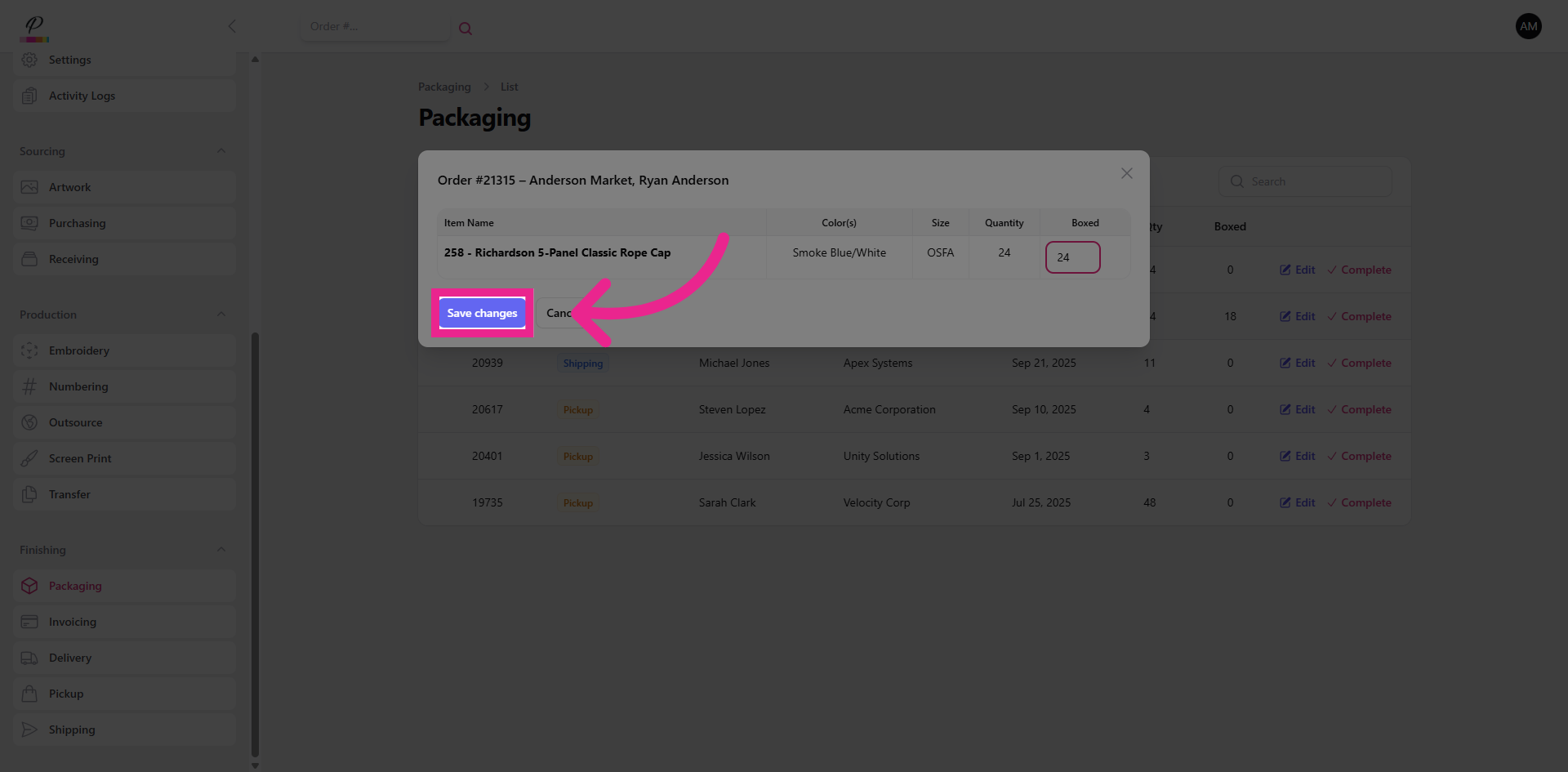
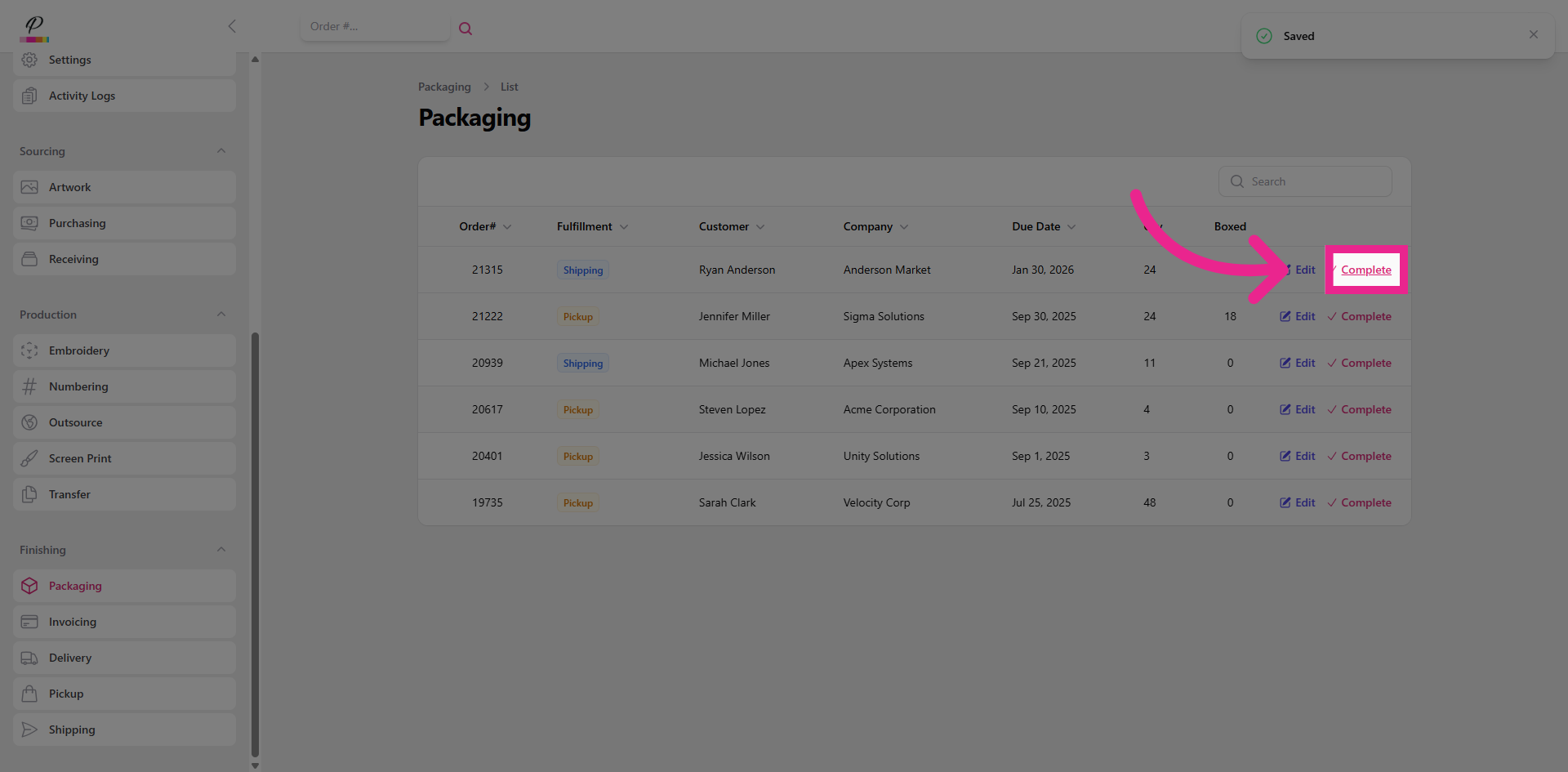
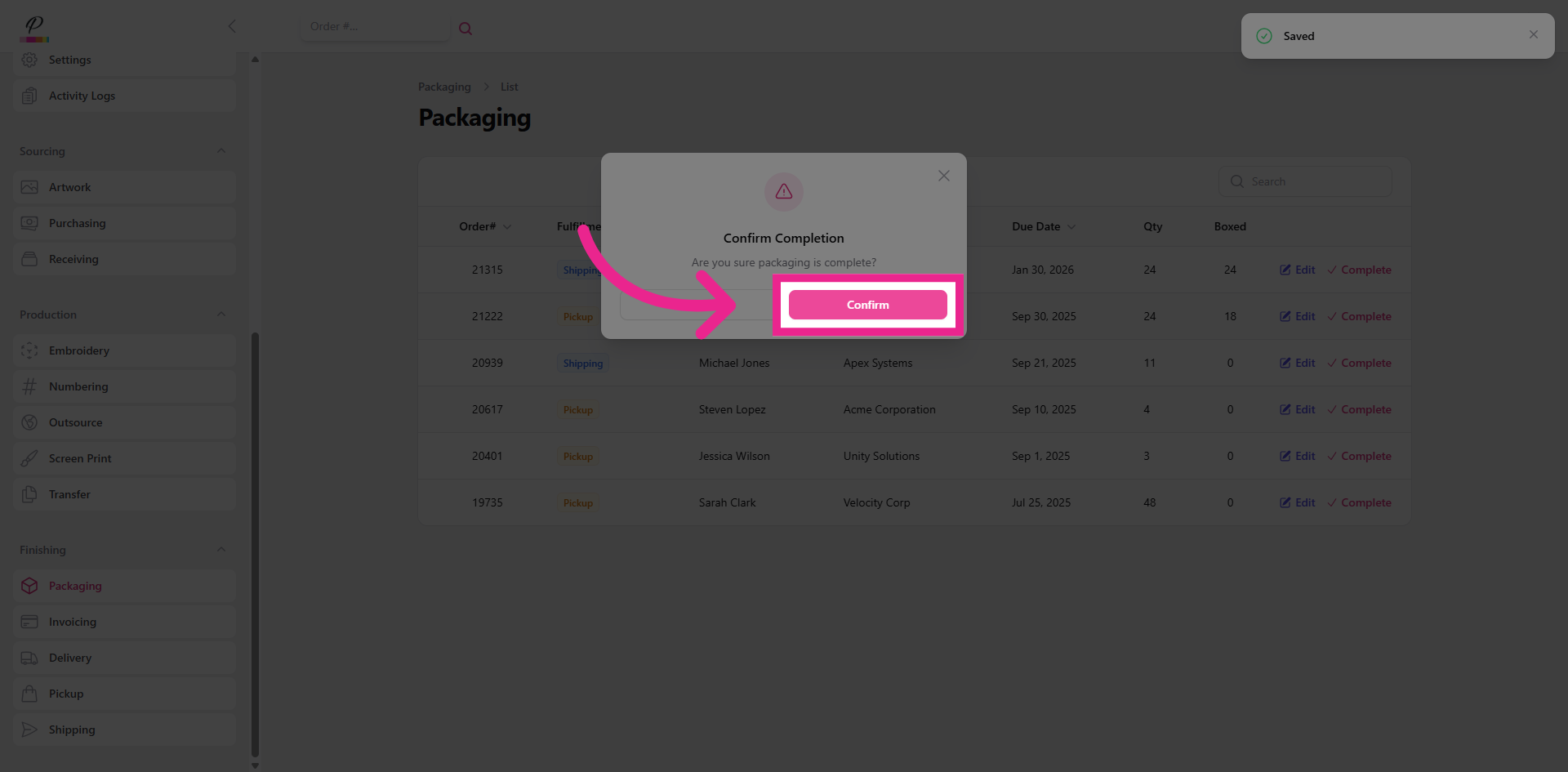
Just like with most queues, the process for clearing out the order is simple. Edit, fill in quantities for each item row.
6. Save Packaging Changes
7. Mark Packaging Complete
8. Confirm Packaging Completion
9. Return to Shipping Section
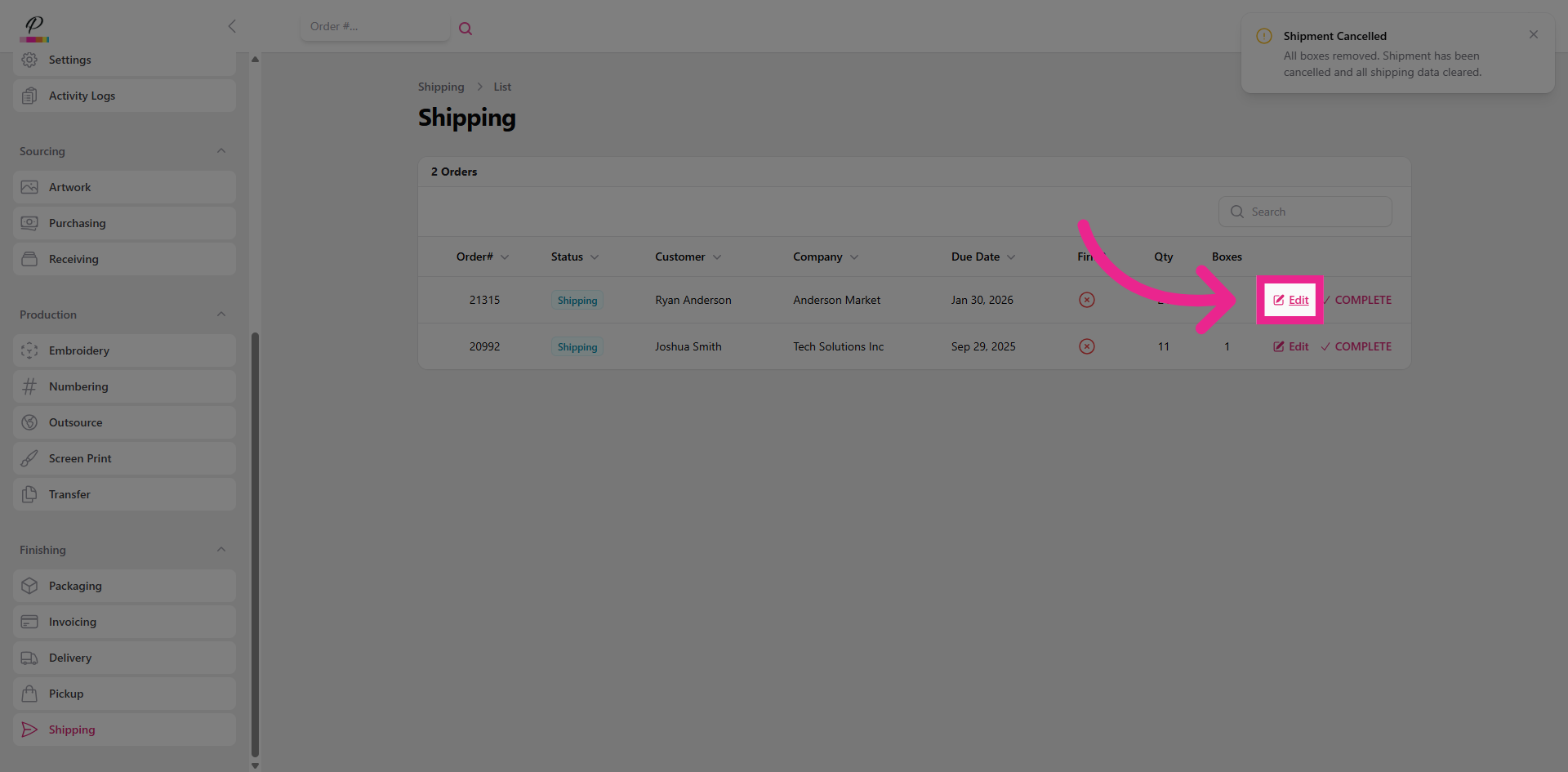
Next, let's create a shipment for that order.
10. Edit Shipping Details
11. Enter Shipping Status
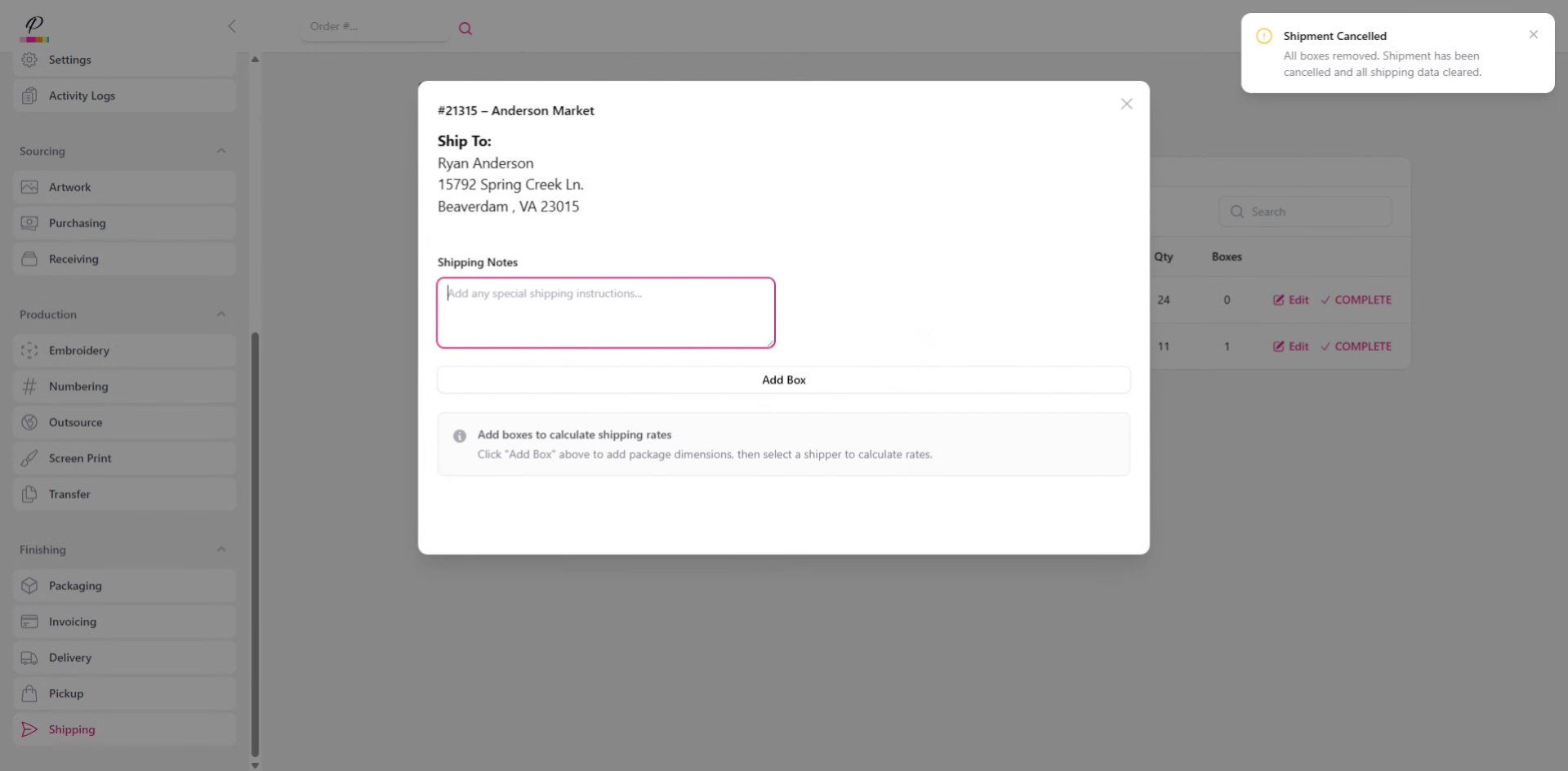
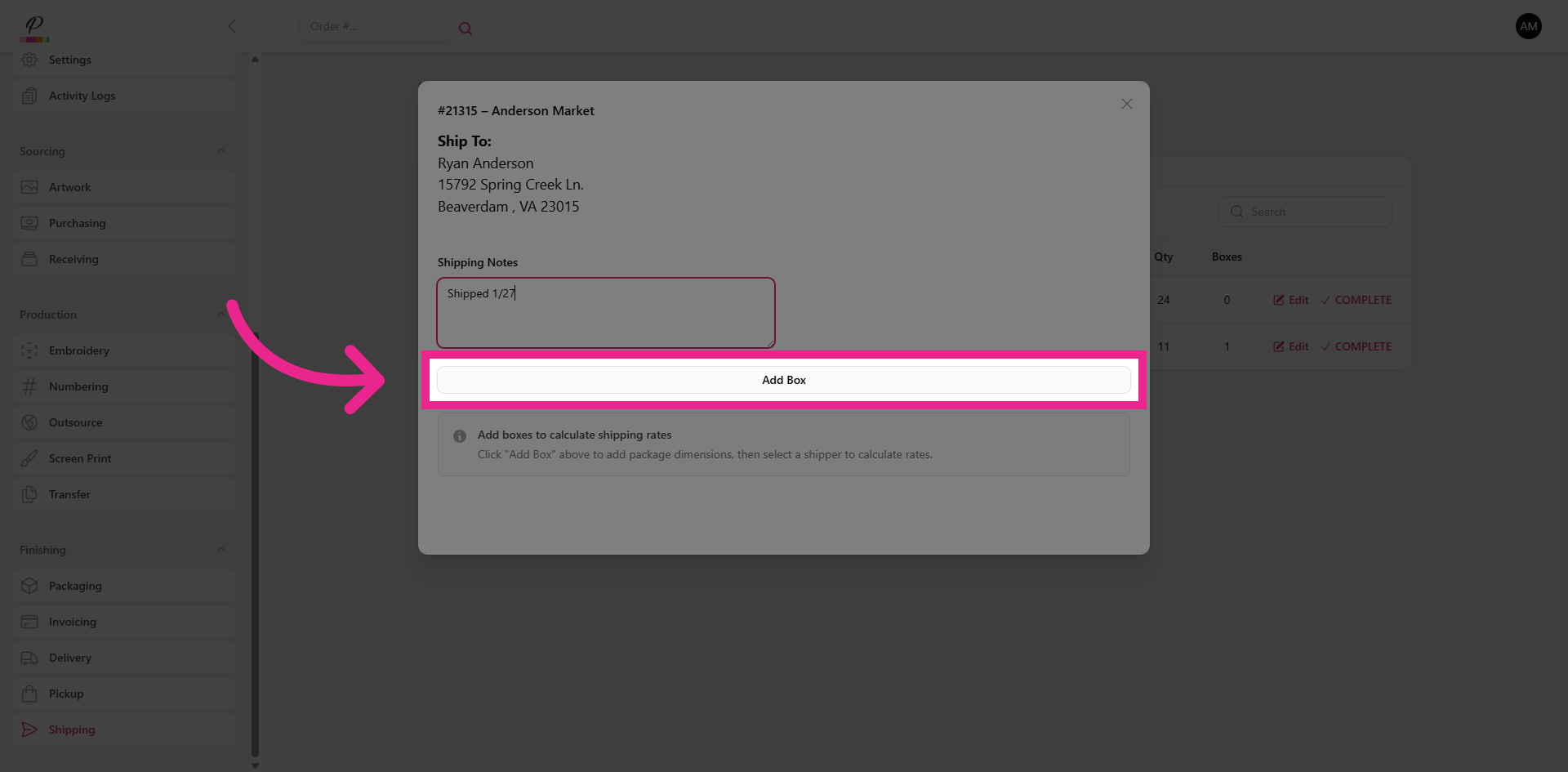
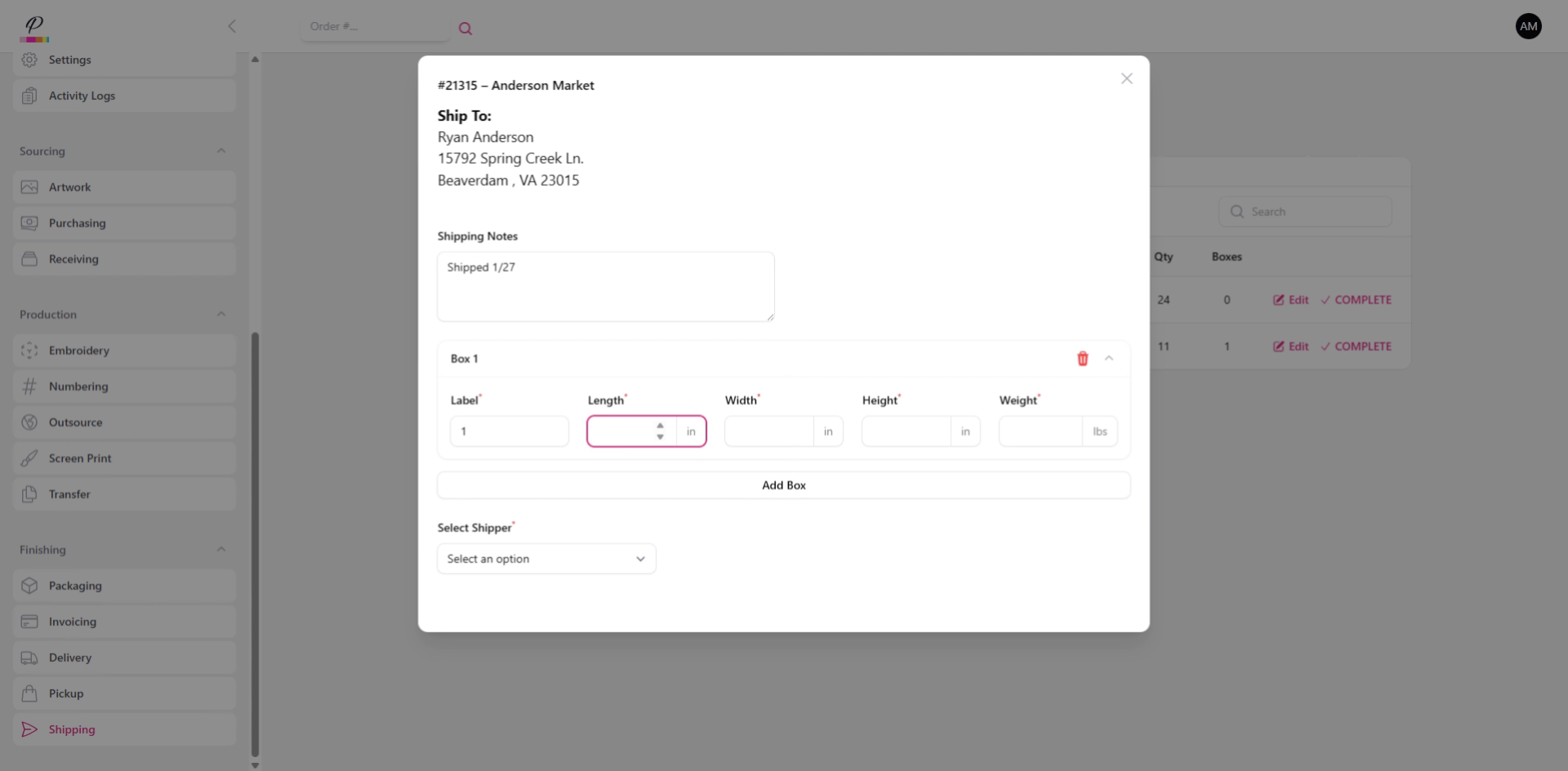
Here in the pop-up window, you will see the address that was entered when the order was created. You will also see any shipment notes that were added, and you can add additional notes as needed.
12. Add New Shipping Box
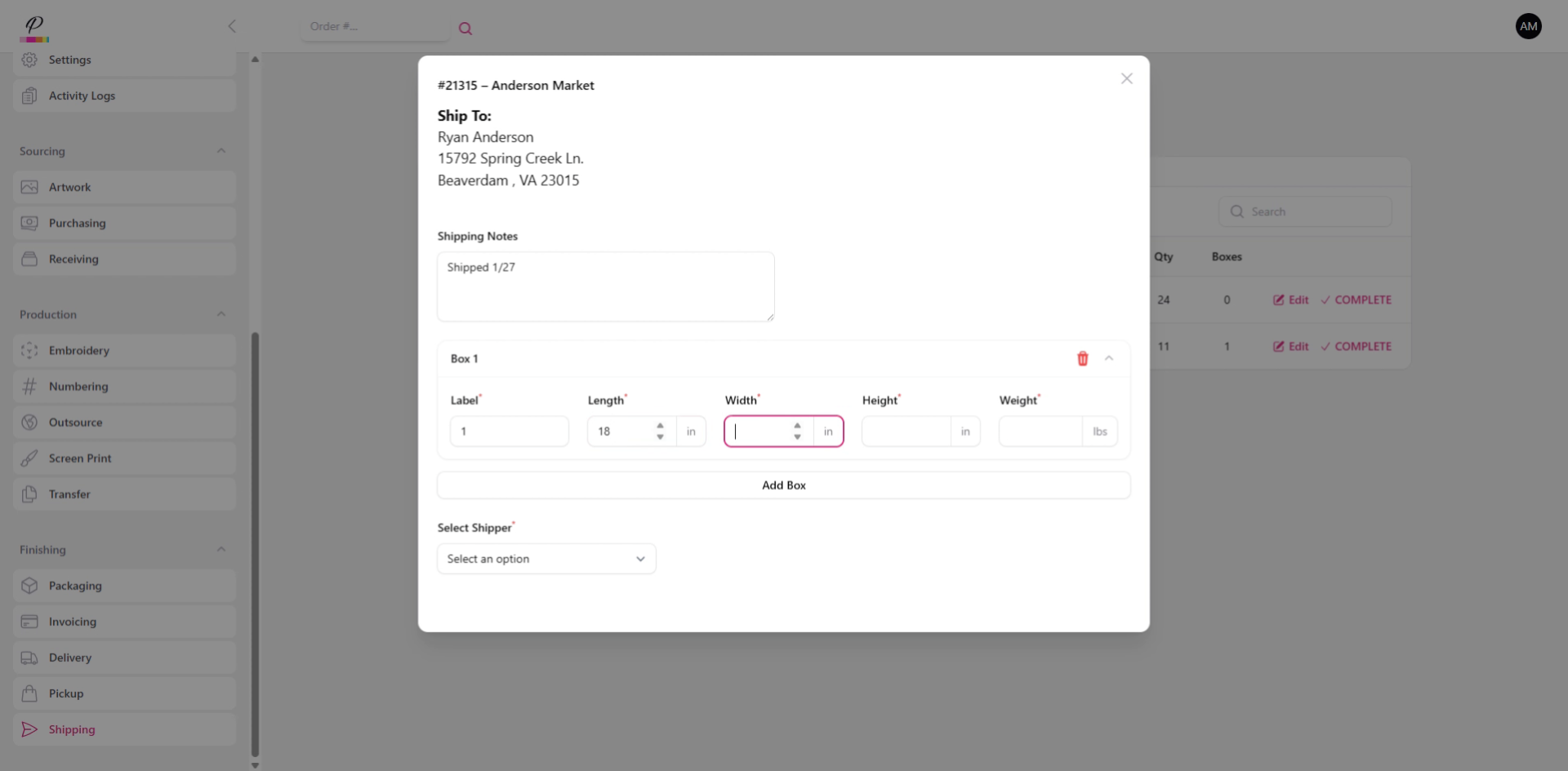
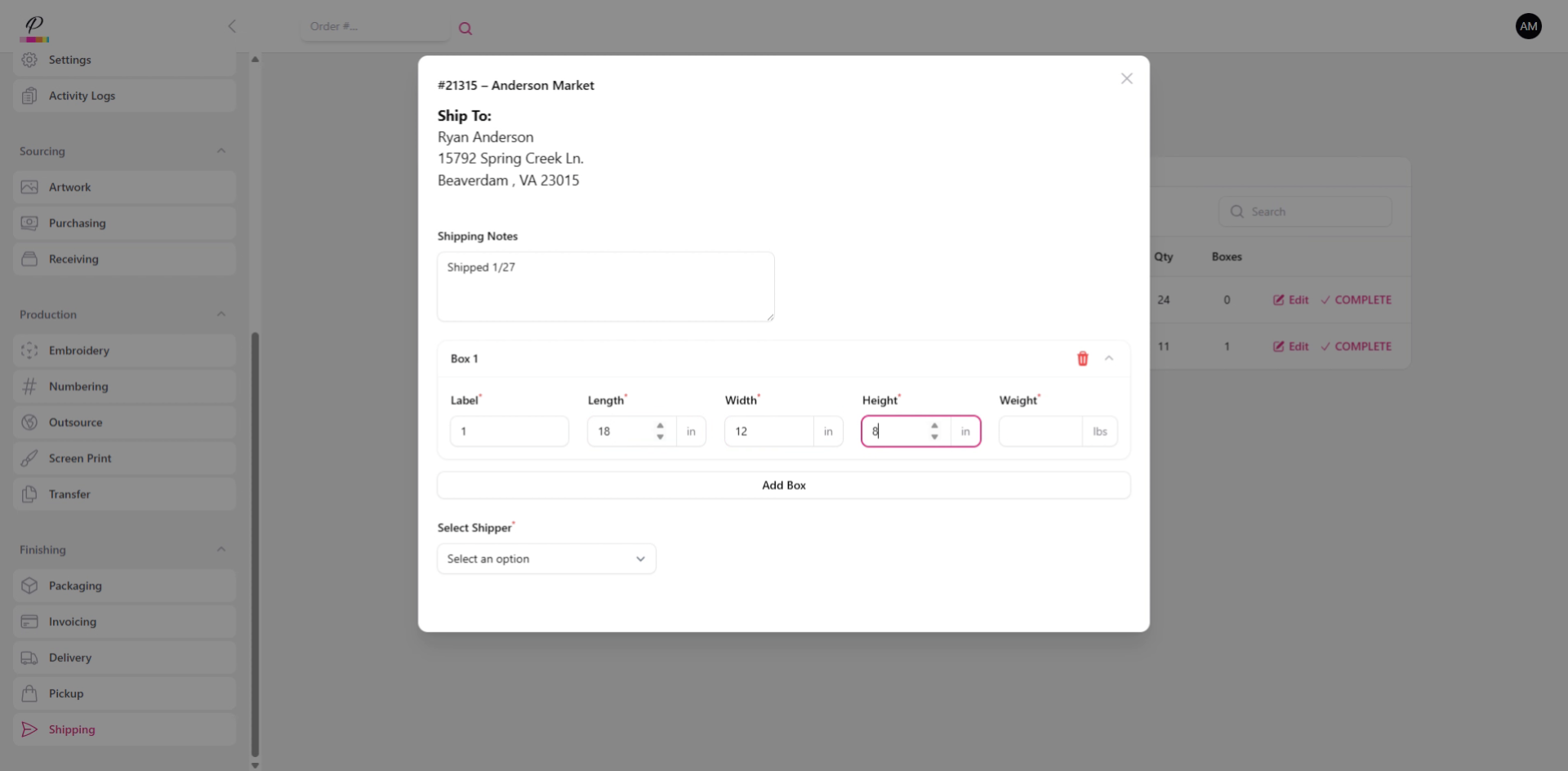
13. Enter Box Length, Height, Width + Weight
Fill in the dimensions to define package size and weight.
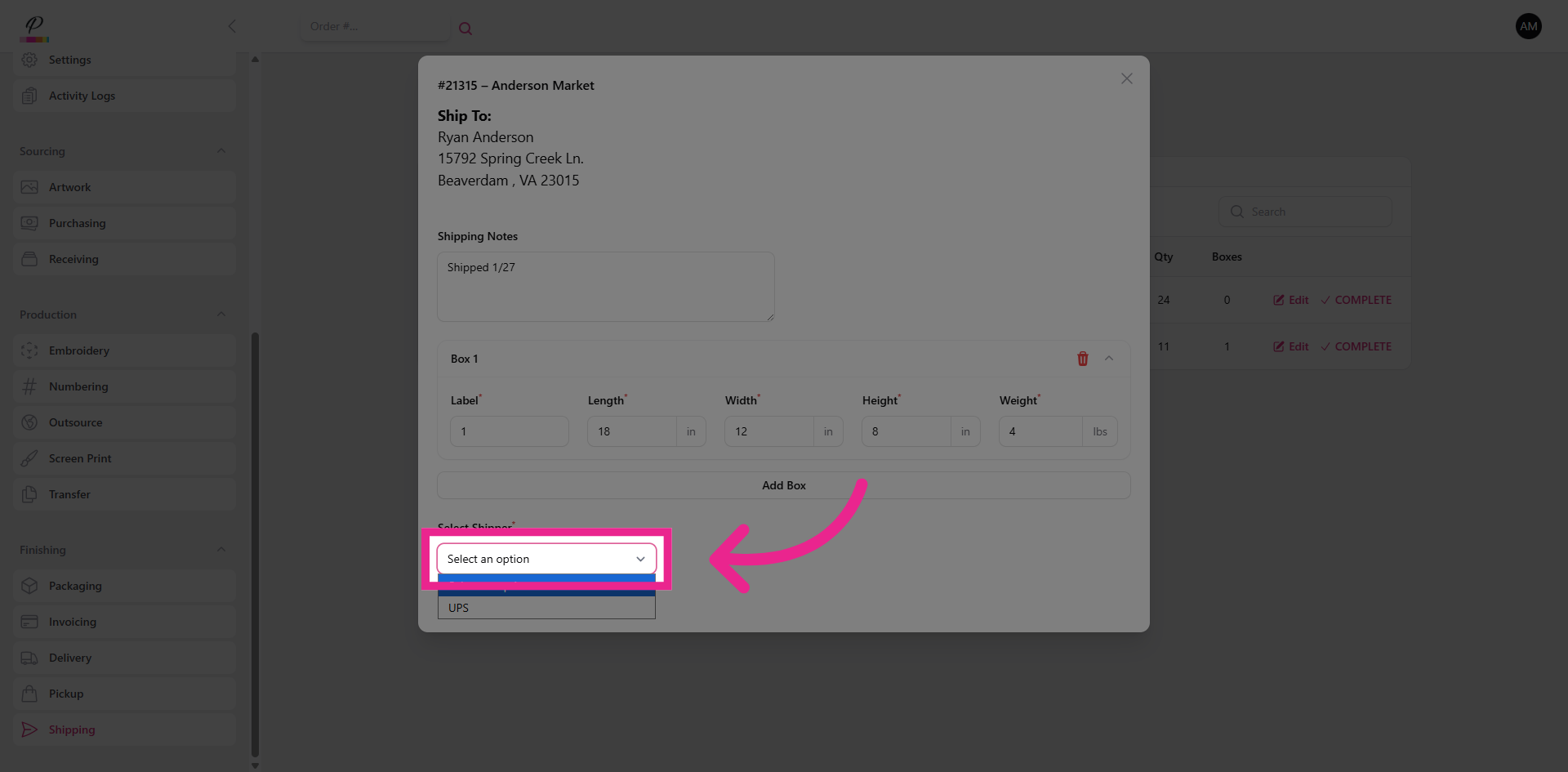
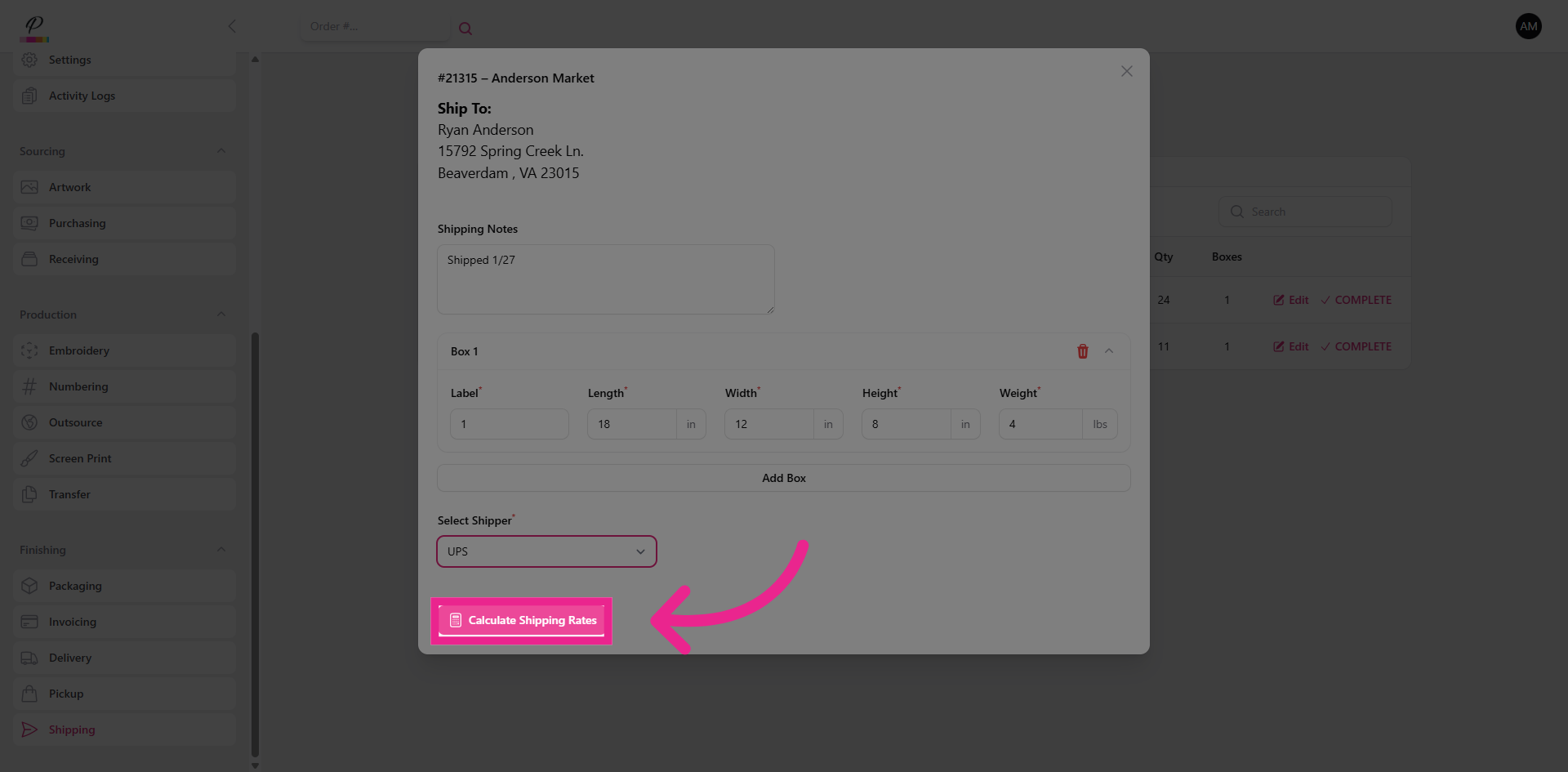
16. Select Shipper
Next select the shipper. This will be the shipper account that you have linked at the administrator level.
17. Calculate Shipping Rates
Then, calculate the shipping rates.
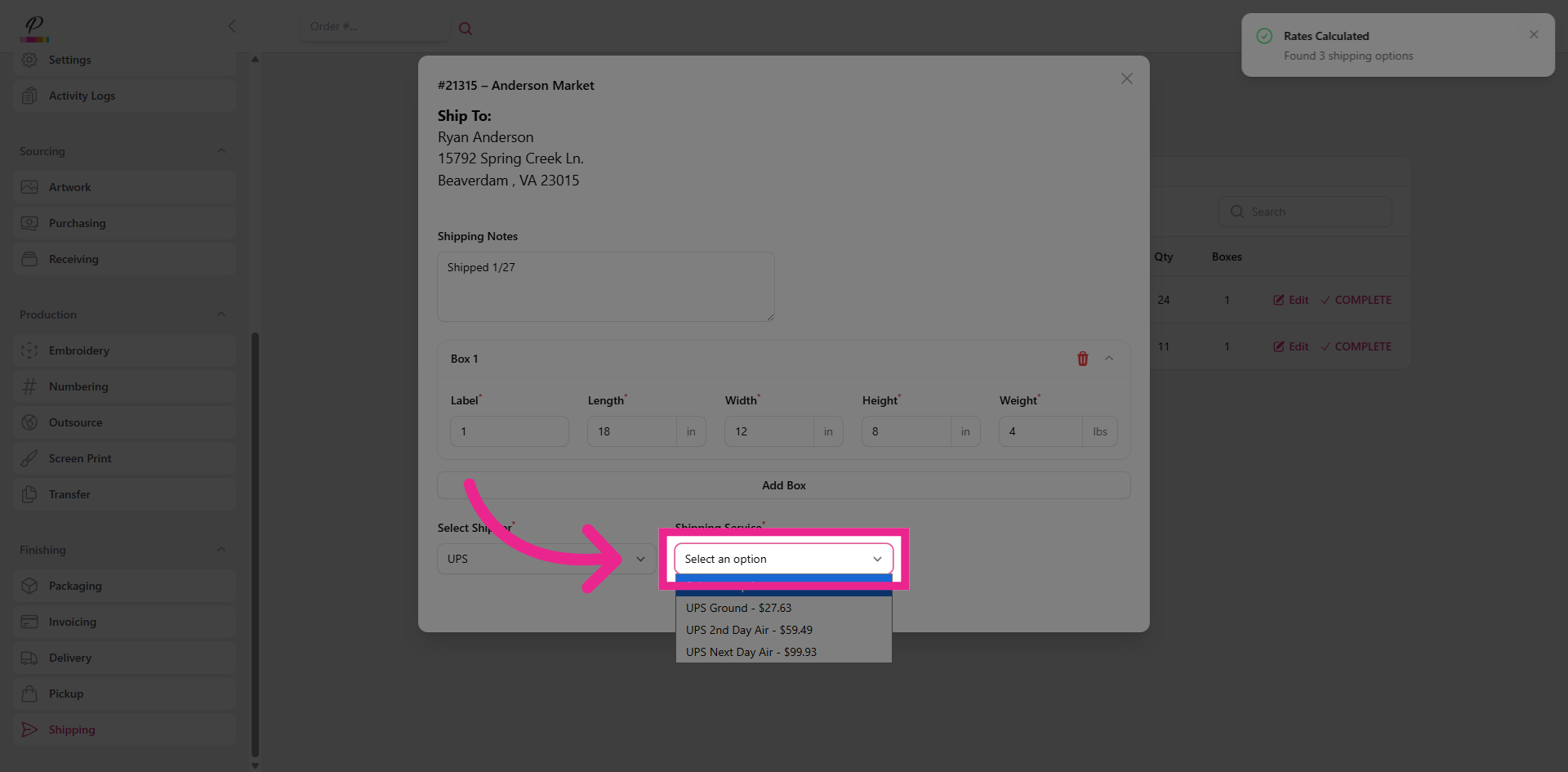
18. Select Shipping Carrier
Select the one that best suits the shipment's needs.
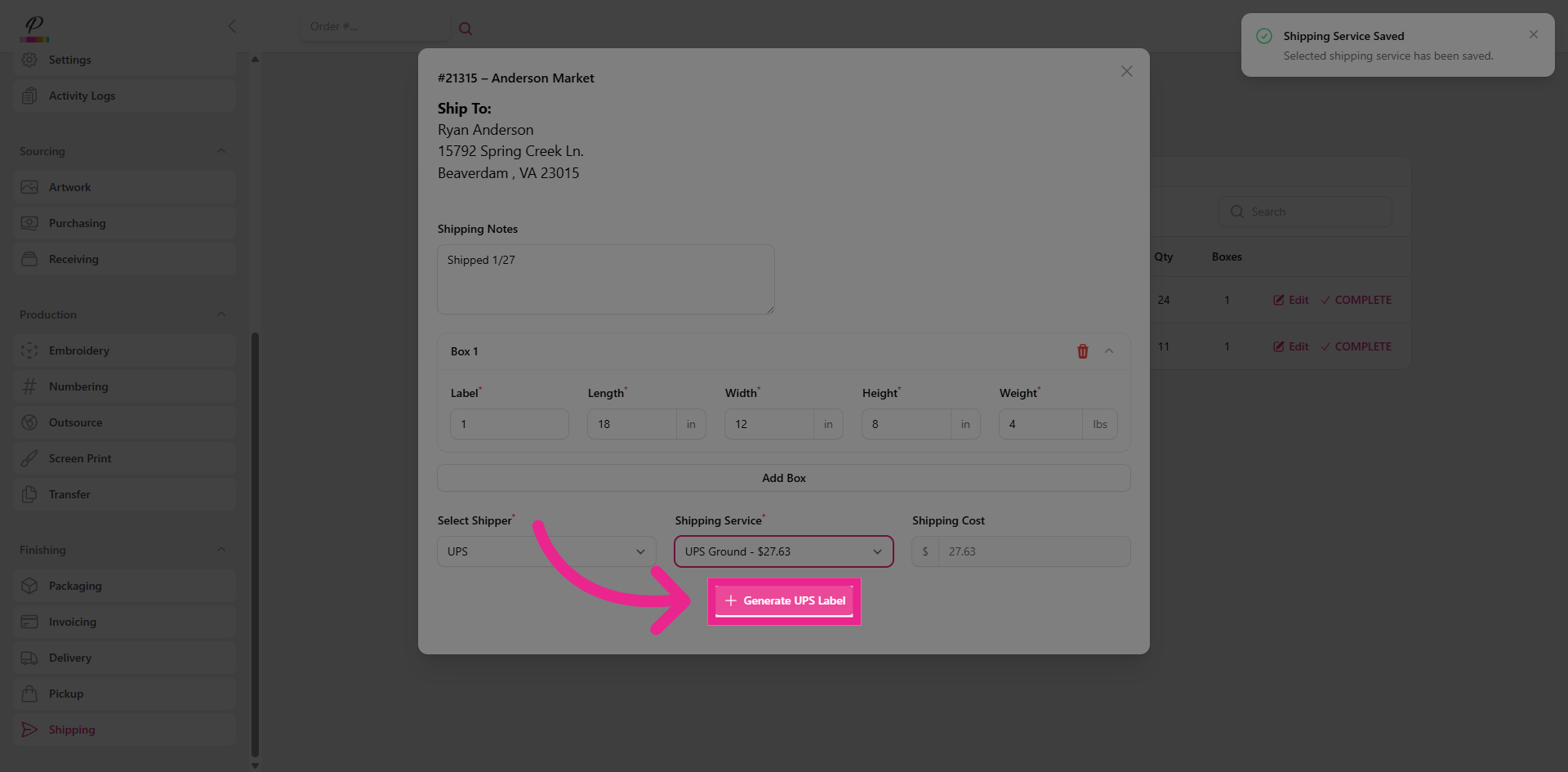
19. Generate Shipping Label
And then generate the label
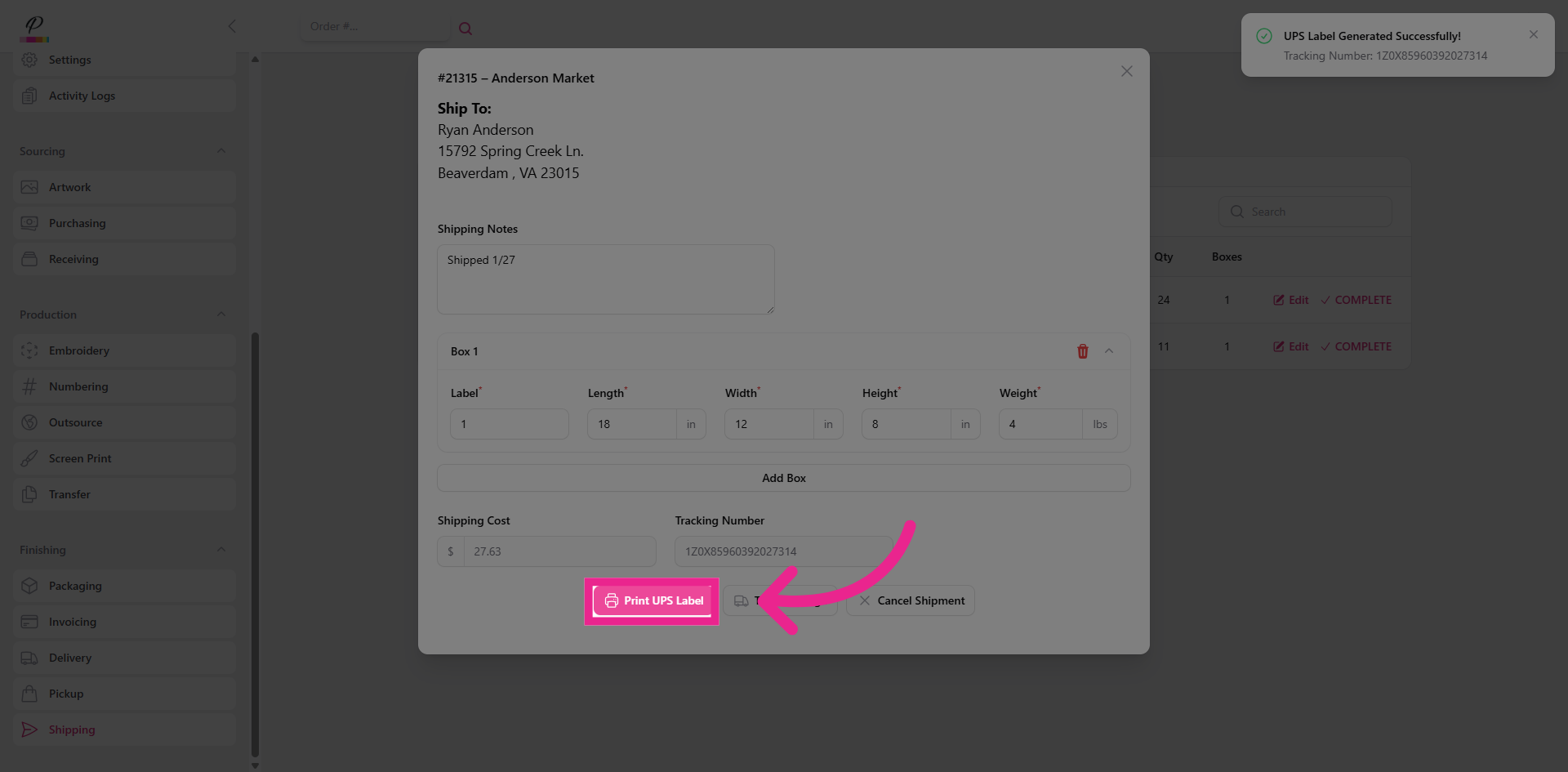
20. Print Shipping Label
and print!
21. Complete Shipping Confirmation
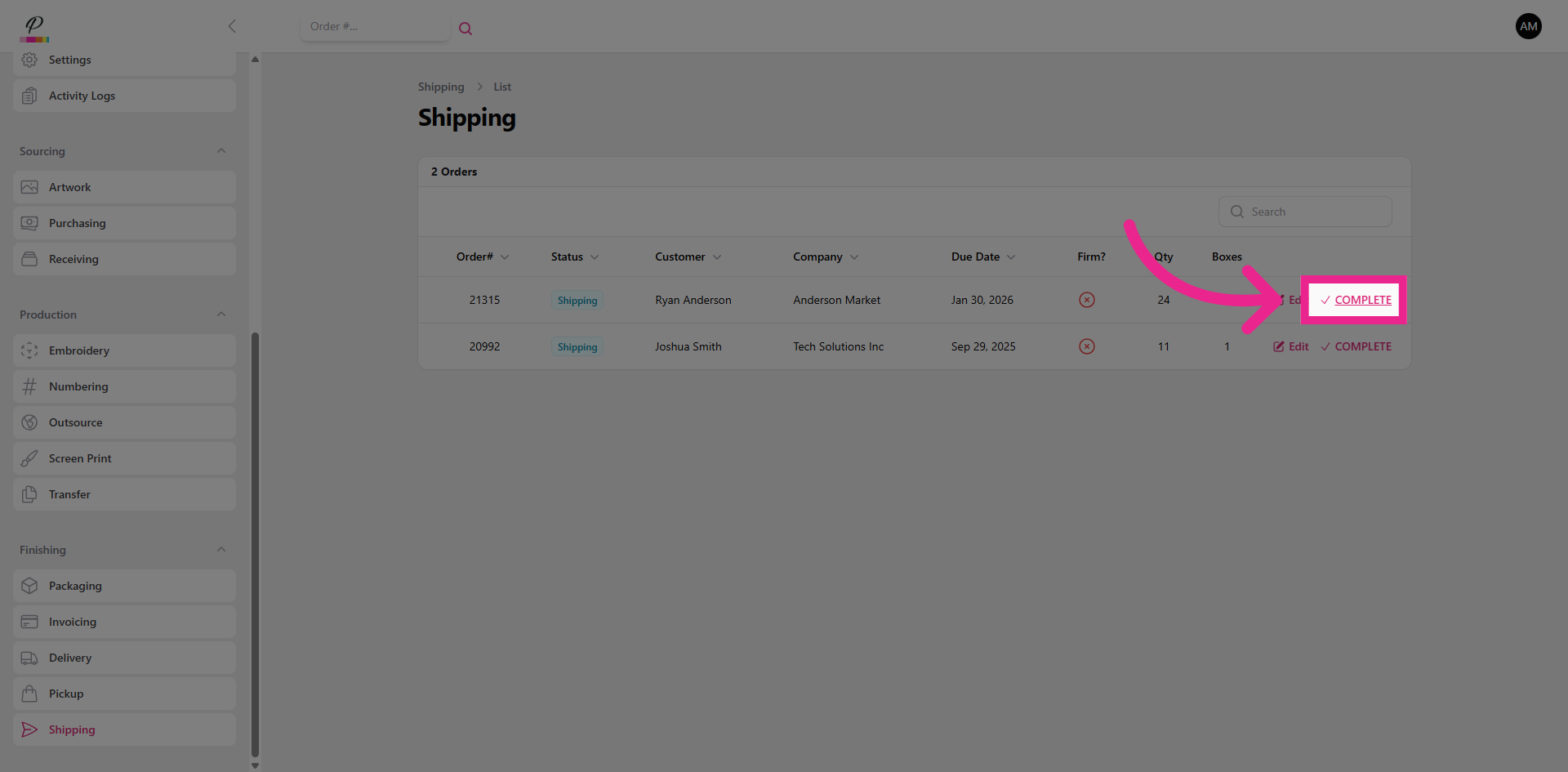
Once you have printed the label, go ahead and complete the order to clear it out of the shipping queue.
22. Select Pickup Option
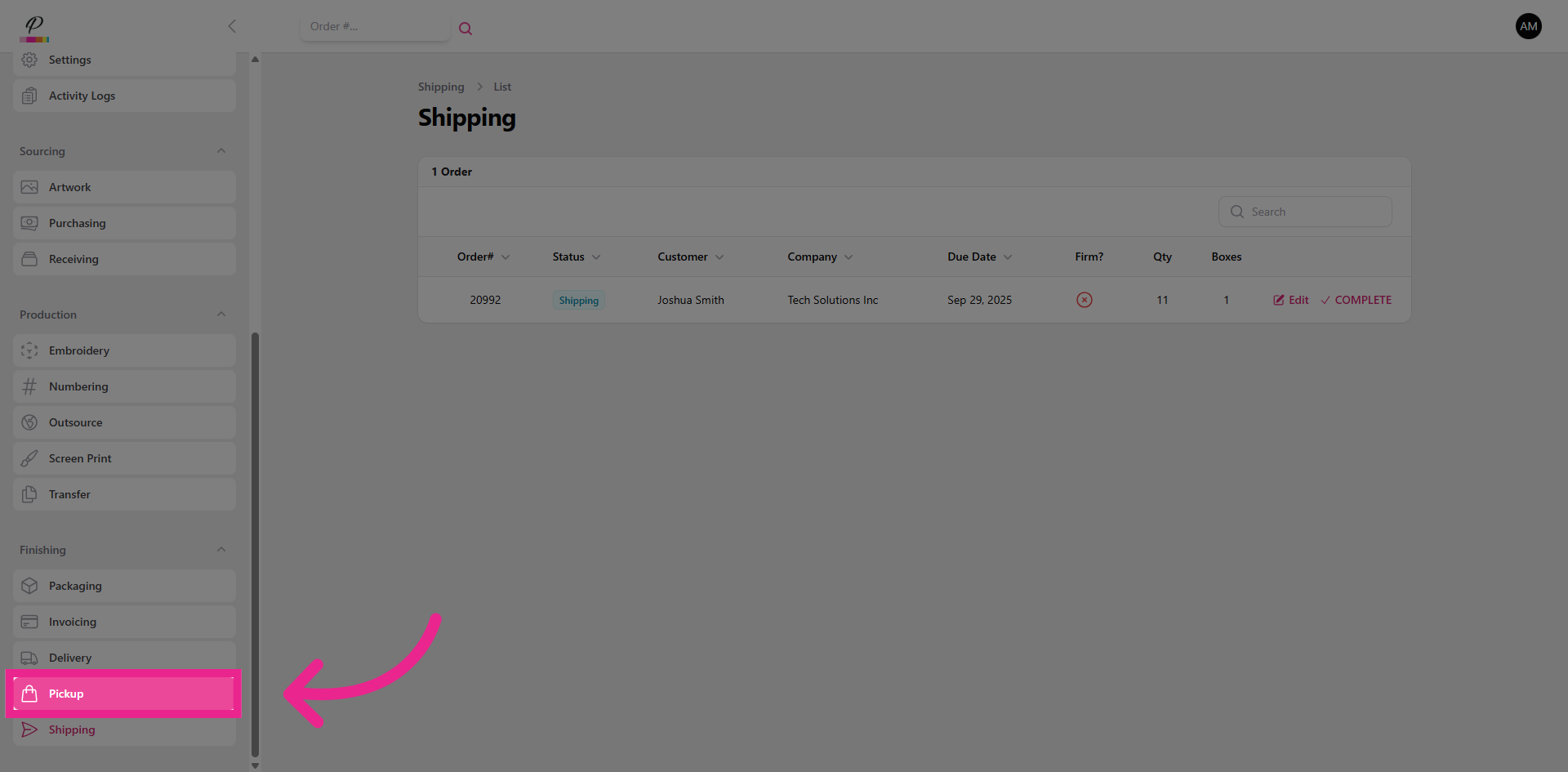
Great! Now let's take a quick look at pickup.
23. Confirm Pickup Completion
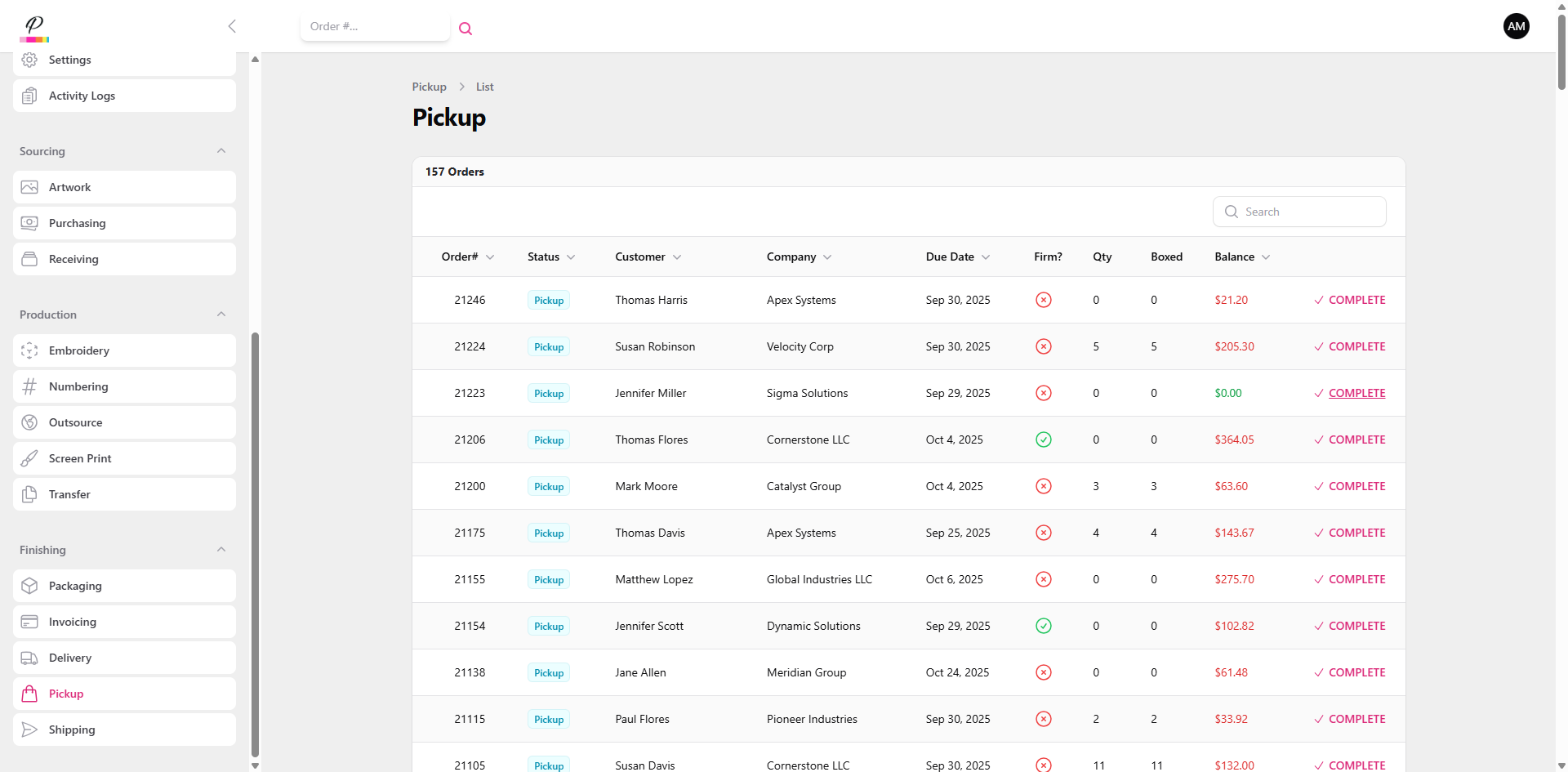
Here you will see the list of orders that are waiting to be picked up by the customer. They will receive an email notification once the order status has been updated to pickup. You will also be able to see if the customer has a remaining balance on the order and notify them when they pick up their order.
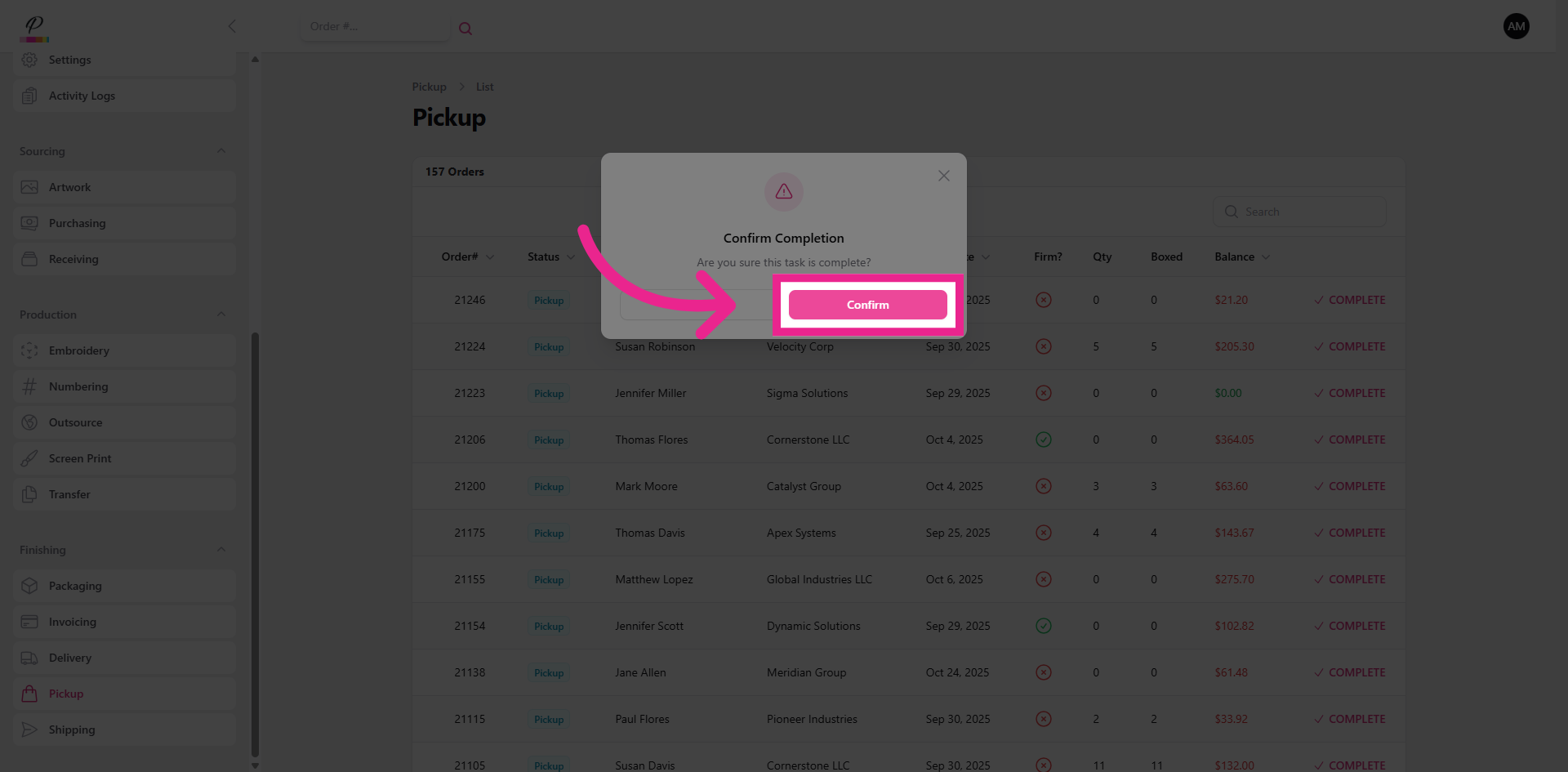
24. Confirm Pickup Completion
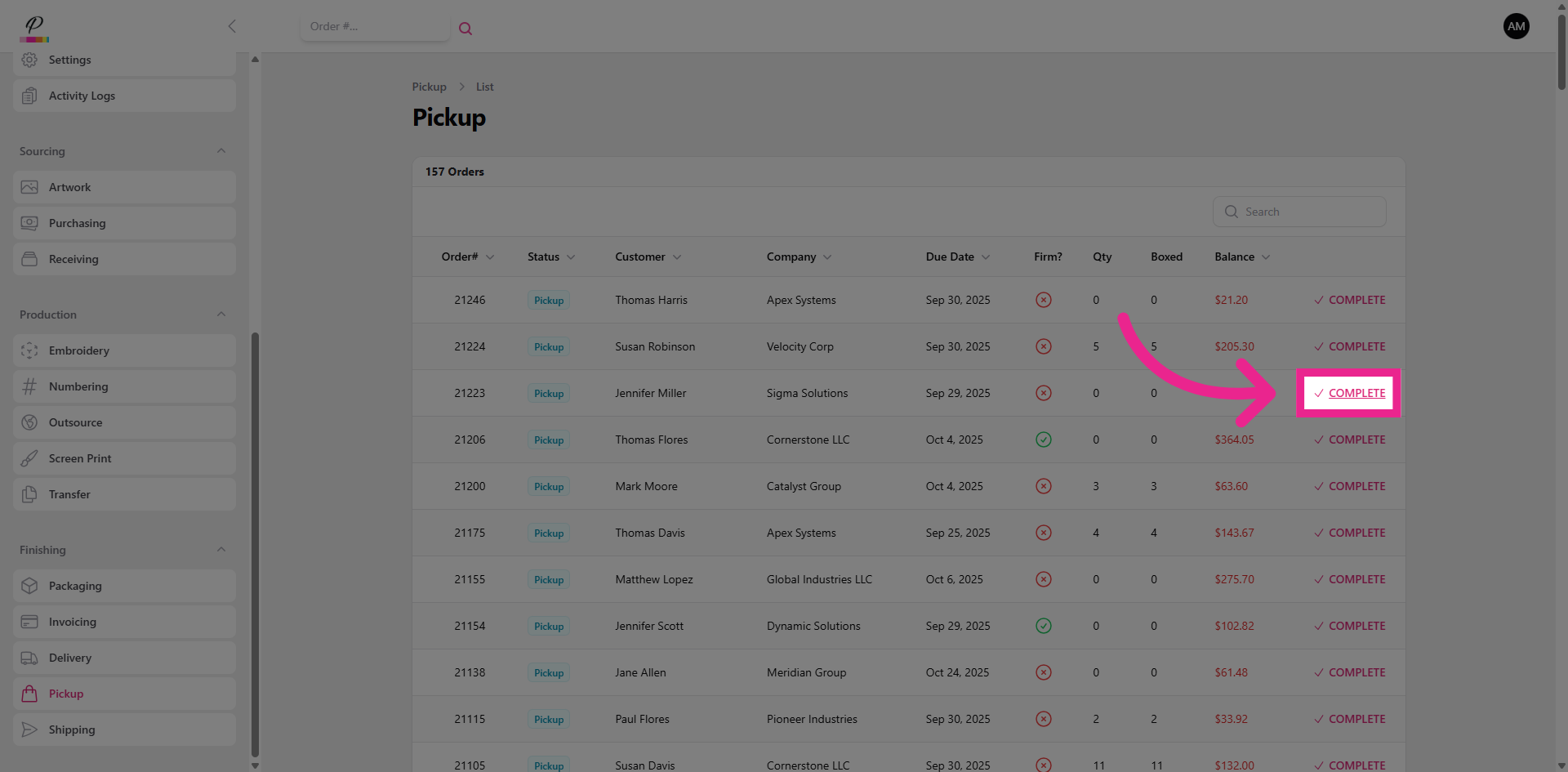
Once the order has been transferred to the customer, you can go ahead and clear it out of the queue which will update the order status to complete.
25. Confirm Pickup Finalization
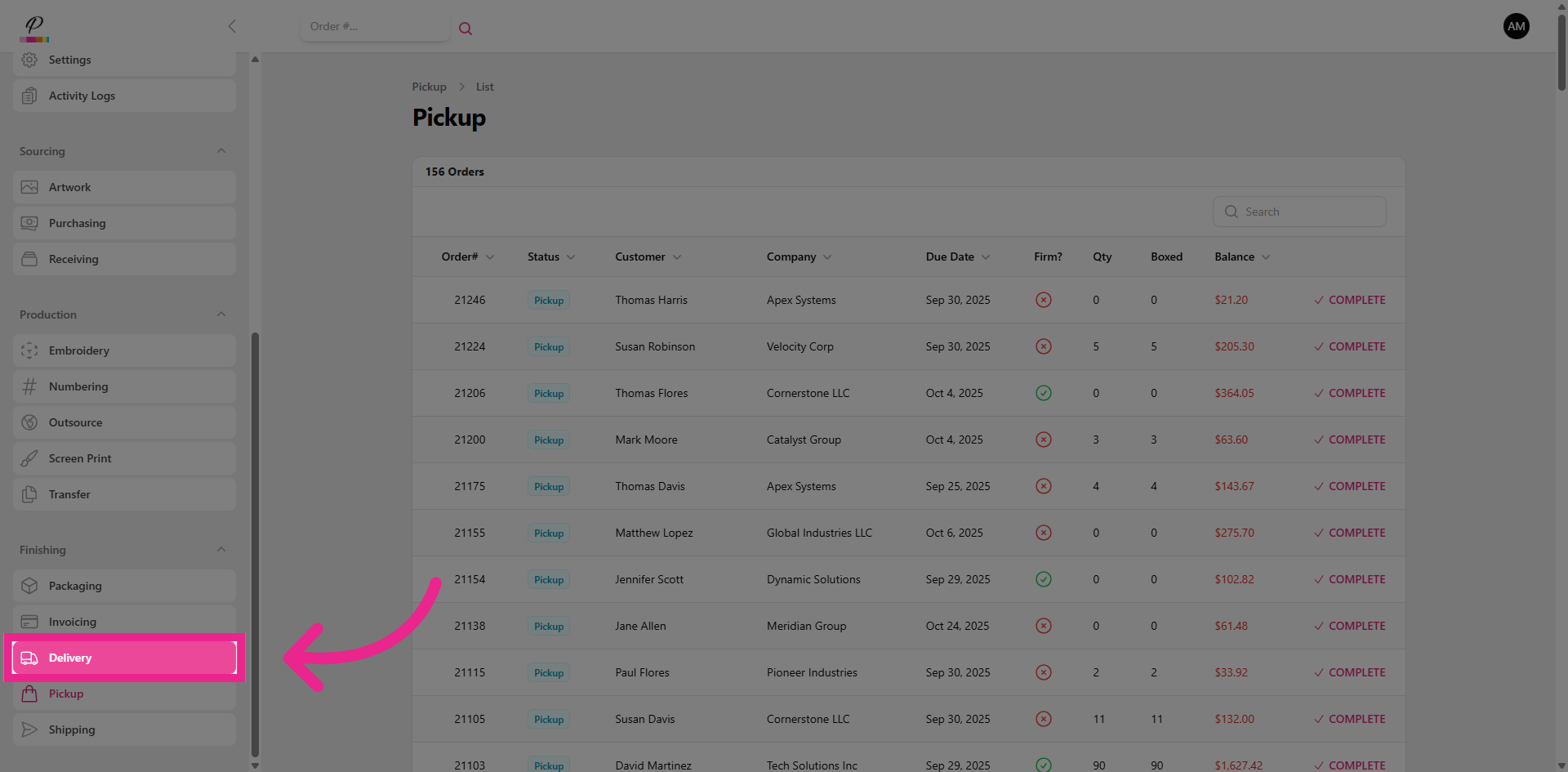
26. Return to Delivery Section
Lastly, let's look at delivery
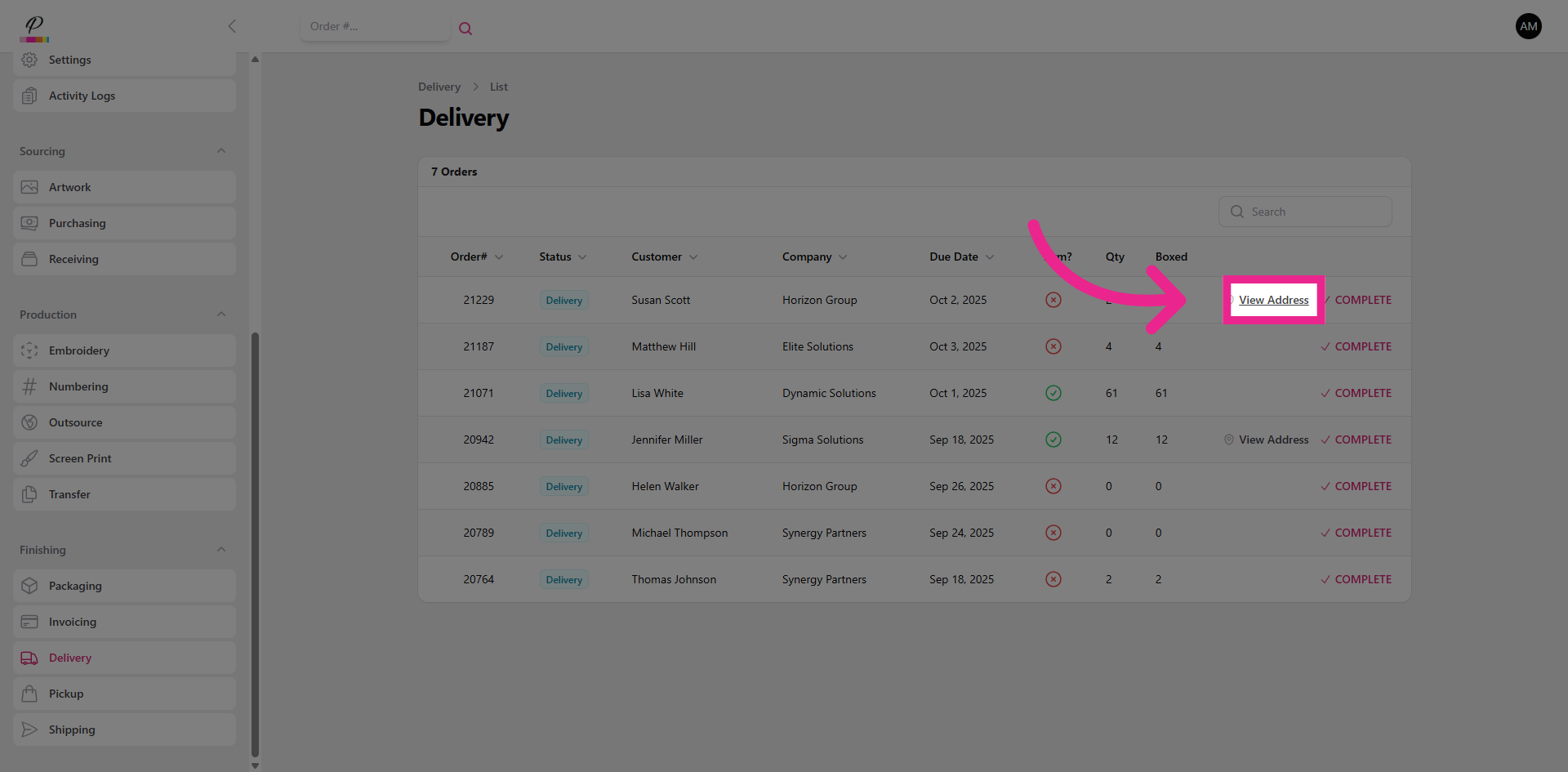
27. View Delivery Address
The delivery team will be able to quickly access the delivery address here
28. Close Delivery Window
which includes a very helpful map view thanks to integration with Google Maps.
29. Complete Delivery Step
Once delivery has been confirmed, clear the order out of the queue to update the order status to complete.
30. Confirm Delivery Completion
That's it, you're done! There's nothing left to do on the order now. You have successfully moved the order through the entire process from start to finish